Aide et assistance
Pour toute aide ou question, contactez-nous par e-mail à [email protected].
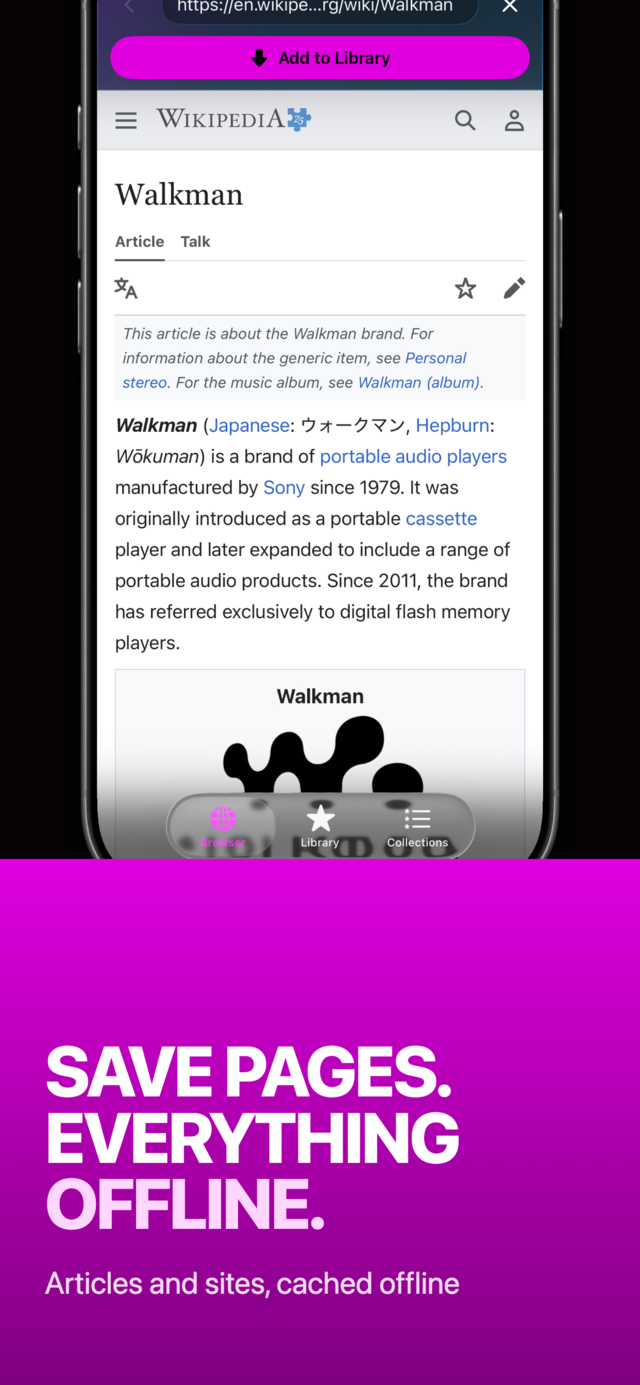
MVO est un navigateur web intégré et une bibliothèque multimédia pour iPhone. Naviguez sur les sites dans l’app, ajoutez des pages à votre bibliothèque, mettez leur musique et leurs vidéos en cache sur votre appareil, et lisez tout sans réseau. N’enregistrez que les contenus que vous avez le droit de conserver.
 |
 |
 |
Premiers pas
MVO comporte trois onglets :
- Navigateur : visitez des sites et ajoutez des pages à votre bibliothèque.
- Bibliothèque : tout ce que vous avez enregistré.
- Collections : vos favoris regroupés dans des collections nommées.
L’app se rouvre sur le dernier onglet utilisé. Pendant la lecture, un mini-lecteur s’affiche au-dessus de la barre d’onglets, sur tous les onglets. MVO utilise le mode sombre et n’affiche aucune publicité tierce.
Vous découvrez MVO ? Lisez comment écouter de la musique sans internet sur iPhone.
Bibliothèque
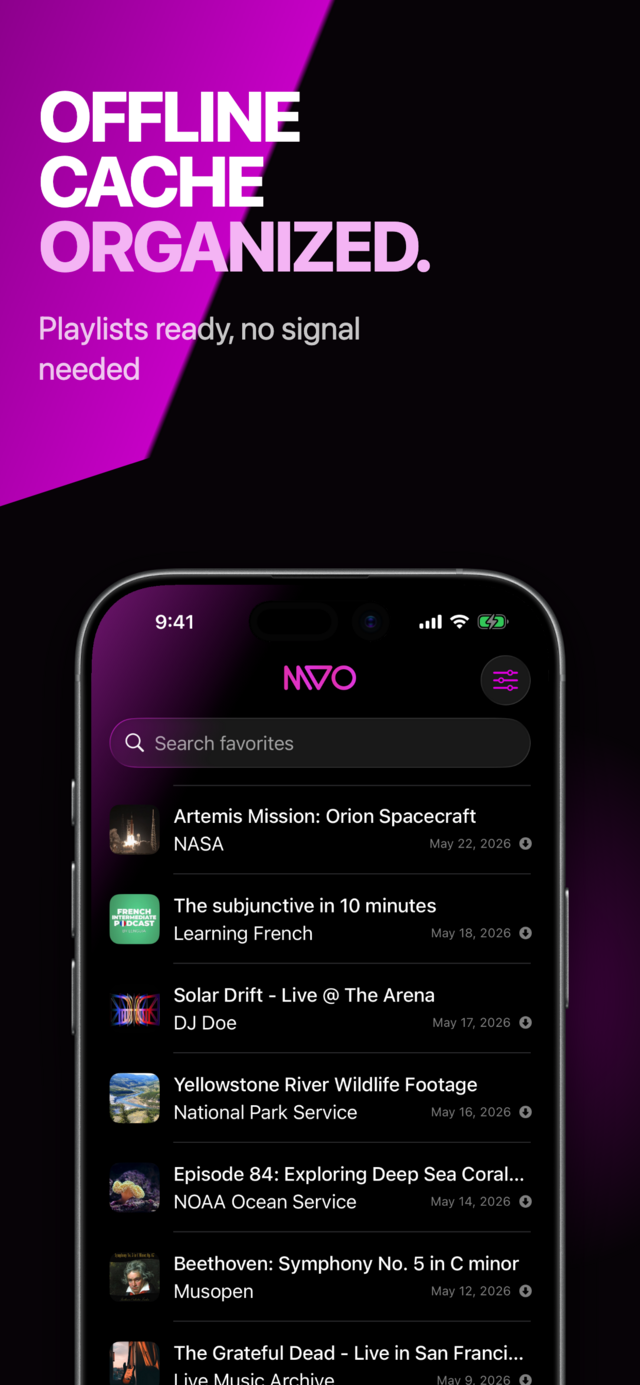
L’onglet Bibliothèque liste tous les favoris que vous avez enregistrés, du plus récent au plus ancien.
Lignes et icônes d’état
Chaque ligne affiche une vignette, le titre et l’auteur. En bas à droite figure la durée pour l’audio et la vidéo en cache, ou la date d’ajout pour les pages et les liens. L’icône de droite indique l’état du cache :
- Cercle en pointillés : lien seul, pas encore mis en cache.
- Document : une copie de page enregistrée (la page telle qu’elle était au moment de l’ajout).
- Cercle plein avec flèche vers le bas : le média est en cache.
- Point d’exclamation : la dernière tentative de mise en cache a échoué.
Recherche
Tirez vers le bas ou touchez le champ Rechercher dans les favoris en haut. La recherche porte uniquement sur les titres des favoris.
Ouvrir un favori
- Média en cache : la lecture démarre et le mini-lecteur apparaît. La file d’attente est construite à partir des favoris en cache de la liste affichée, y compris avec un filtre de recherche.
- Copie de page enregistrée : l’onglet Navigateur ouvre la copie enregistrée de la page. La barre d’adresse affiche une icône de document et le titre du favori.
- Lien seul : l’onglet Navigateur ouvre la page d’origine.
Actions sur une ligne
Faites un appui long sur une ligne, ou balayez vers la droite et touchez Action, pour ouvrir le menu :
- Sélectionner : lance la sélection multiple avec cette ligne sélectionnée.
- Mettre en cache : enregistre le média sur votre appareil (affiché s’il n’est pas encore en cache).
- Réessayer la mise en cache : affiché après un échec.
- Collections : ajoute le favori à des collections ou l’en retire.
- Modifier : changez le titre et l’auteur, puis touchez Enregistrer.
- Supprimer : supprime le favori et son cache.
Vous pouvez aussi balayer une ligne vers la gauche et toucher Supprimer.
Annuler une suppression
Après avoir supprimé un ou plusieurs favoris, une bannière avec Annuler apparaît en haut pendant environ cinq secondes. Touchez Annuler pour les restaurer. Balayez la bannière vers le haut pour confirmer tout de suite, ou laissez-la disparaître.
Sélection multiple
Choisissez Sélectionner dans le menu d’une ligne. Touchez les lignes pour les sélectionner ou les désélectionner (une coche apparaît). La barre d’onglets est remplacée par une barre en bas de l’écran :
- Terminé : quitte la sélection multiple.
- Ajouter à une collection : ajoute tous les favoris sélectionnés à une collection.
- Supprimer : supprime tous les favoris sélectionnés (avec la même bannière Annuler).
Bibliothèque vide
Sans favori, ou sans résultat de recherche, le message Aucun favori pour l’instant s’affiche. Ajoutez des pages depuis le Navigateur pour remplir votre bibliothèque.
Collections
Les collections regroupent vos favoris, comme des playlists. Un favori peut appartenir à plusieurs collections.
Créer et gérer des collections
- Créer : touchez + en haut à gauche, saisissez un nom dans Créer une collection et touchez Créer.
- Renommer ou supprimer : faites un appui long sur une collection et choisissez Modifier ou Supprimer, ou balayez vers la gauche et touchez Supprimer.
- Annuler : une bannière avec Annuler apparaît pendant environ cinq secondes après une suppression.
Supprimer une collection ne supprime jamais les favoris qu’elle contient. Ils restent dans votre bibliothèque.
Trier les collections
Touchez l’icône de tri en haut à droite et choisissez A-Z, Z-A, Plus récents (par défaut) ou Plus anciens. MVO mémorise votre choix.
Dans une collection
Touchez une collection pour voir ses favoris. La liste fonctionne comme l’onglet Bibliothèque : recherche, actions sur les lignes, sélection multiple, mise en cache et lecture. Le menu de tri propose A-Z, Z-A, Plus récents, Plus anciens et Aléatoire. Choisissez à nouveau Aléatoire pour obtenir un nouveau mélange.
Ajouter des favoris à une collection
Choisissez Collections dans le menu d’un favori, ou Ajouter à une collection en sélection multiple. Touchez une collection pour y ajouter ou en retirer le favori ; une coche indique qu’il en fait partie. Touchez Annuler en haut à droite pour fermer sans rien changer. Si vous n’avez encore aucune collection, créez-en d’abord une dans l’onglet Collections.
Pour aller plus loin, lisez comment organiser musique et vidéos en playlists sur iPhone.
Navigateur
L’onglet Navigateur sert à trouver des contenus. Quand vous rouvrez MVO, il recharge la dernière page consultée.
Écran d’accueil et signets
Quand aucune page n’est chargée, le Navigateur affiche Commencer à naviguer et vos signets. Touchez un signet, ou touchez la barre d’adresse pour visiter un site. Les signets sont synchronisés avec votre bibliothèque via iCloud.
Barre d’adresse et commandes
- Retour (chevron) : revient à la page précédente. Depuis une copie de page enregistrée sans historique, Retour ramène à l’écran d’accueil.
- Barre d’adresse : touchez-la pour modifier l’adresse actuelle. Saisissez du texte dans Rechercher ou saisir une URL et touchez Aller pour ouvrir un site ou lancer une recherche sur le web.
- Effacer (X) : ouvre l’éditeur d’adresse avec un champ vide.
- Annuler (X, pendant la saisie) : ferme l’éditeur sans rien charger.
Vous pouvez aussi balayer depuis le bord de l’écran pour revenir en arrière ou avancer. Si une page ne se charge pas, le message Connexion impossible s’affiche avec un bouton Réessayer.
Ajouter à la bibliothèque
Ouvrez une page et touchez Ajouter à la bibliothèque :
- Si la page est déjà enregistrée, MVO affiche Déjà dans vos favoris.
- Sinon, MVO recherche un média derrière le lien. Touchez Annuler sur l’écran de progression pour arrêter ; rien n’est ajouté.
- Média trouvé : le favori est ajouté, MVO passe à l’onglet Bibliothèque et commence la mise en cache du média.
- Collection trouvée (un album, une radio, une liste de vidéos) : voir Importer une collection entière ci-dessous.
- Aucun média trouvé : MVO propose de mettre la page en cache. Touchez Oui pour enregistrer une copie de la page que vous pourrez lire sans réseau, ou Annuler. Si la copie ne peut pas être créée, la page est ajoutée sous forme de lien.
Mise en cache
La mise en cache stocke les médias sur votre appareil pour que vous puissiez les lire sans réseau. Lancez-la avec Ajouter à la bibliothèque dans le Navigateur, ou avec Mettre en cache sur n’importe quel favori.
Vérification du lien
MVO vérifie toujours d’abord le lien, comme dans le Navigateur :
- Média trouvé : la mise en cache démarre.
- Collection trouvée : voir ci-dessous.
- Aucun média trouvé : MVO vous demande s’il faut plutôt mettre la page en cache. Une copie de page nécessite une connexion pour charger la page en direct.
Importer une collection entière
Activez Réglages → Cache → Importer comme collection (désactivé par défaut). Quand un lien fait partie d’une collection, MVO vous demande s’il faut enregistrer Ce média uniquement ou Toute la collection. Si vous choisissez tout, chaque élément est ajouté comme favori, une collection correspondante est créée et chaque élément est mis en cache. Réglage désactivé, seul le média lui-même est ajouté.
Progression
Pendant la mise en cache, un écran affiche Mise en cache…, le titre et le lien du favori, ainsi qu’une barre de progression avec un pourcentage :
- Quand la vidéo et l’audio sont récupérés séparément, la vidéo remplit les premiers 70 % de la barre et l’audio le reste.
- Finalisation… s’affiche pendant l’assemblage de la vidéo et de l’audio.
- X sur Y en cache s’affiche quand plusieurs favoris sont enregistrés à la suite.
Une fois la mise en cache terminée, la ligne affiche l’icône du cercle plein avec flèche. Le titre et l’auteur peuvent être mis à jour à partir des informations du média. MVO enregistre toujours le meilleur format disponible ; pour n’entendre que le son, utilisez Audio uniquement dans les Réglages.
Annuler
Touchez Annuler sur l’écran de progression pour arrêter à tout moment. Si plusieurs favoris sont en attente, Annuler les arrête aussi.
Quitter l’app
Une mise en cache continue quand vous quittez MVO, de la vérification du lien jusqu’à la fin, y compris pour les éléments en attente. iOS affiche la progression (Vérification du lien…, Mise en cache…, Finalisation…) pendant que l’app est en arrière-plan. Si iOS interrompt la tâche parce que l’appareil manque de ressources, relancez la mise en cache. Quand le système n’autorise pas le travail en arrière-plan, la tâche se met en pause et reprend à votre retour.
En cas d’échec
Un message d’erreur s’affiche avec OK et la ligne affiche un point d’exclamation. Ouvrez le menu de la ligne et touchez Réessayer la mise en cache.
Extension de partage
Ajoutez un lien à MVO depuis Safari ou toute app disposant d’un bouton Partager :
- Touchez Partager dans l’autre app.
- Choisissez MVO dans le menu de partage.
- MVO s’ouvre sur l’onglet Navigateur, charge le lien et l’ajoute à votre bibliothèque avec les mêmes vérifications que Ajouter à la bibliothèque.
Si le lien est déjà enregistré, MVO affiche Déjà dans vos favoris. Voir comment enregistrer un lien depuis Safari ou une autre app dans MVO.
Lecteur
Mini-lecteur
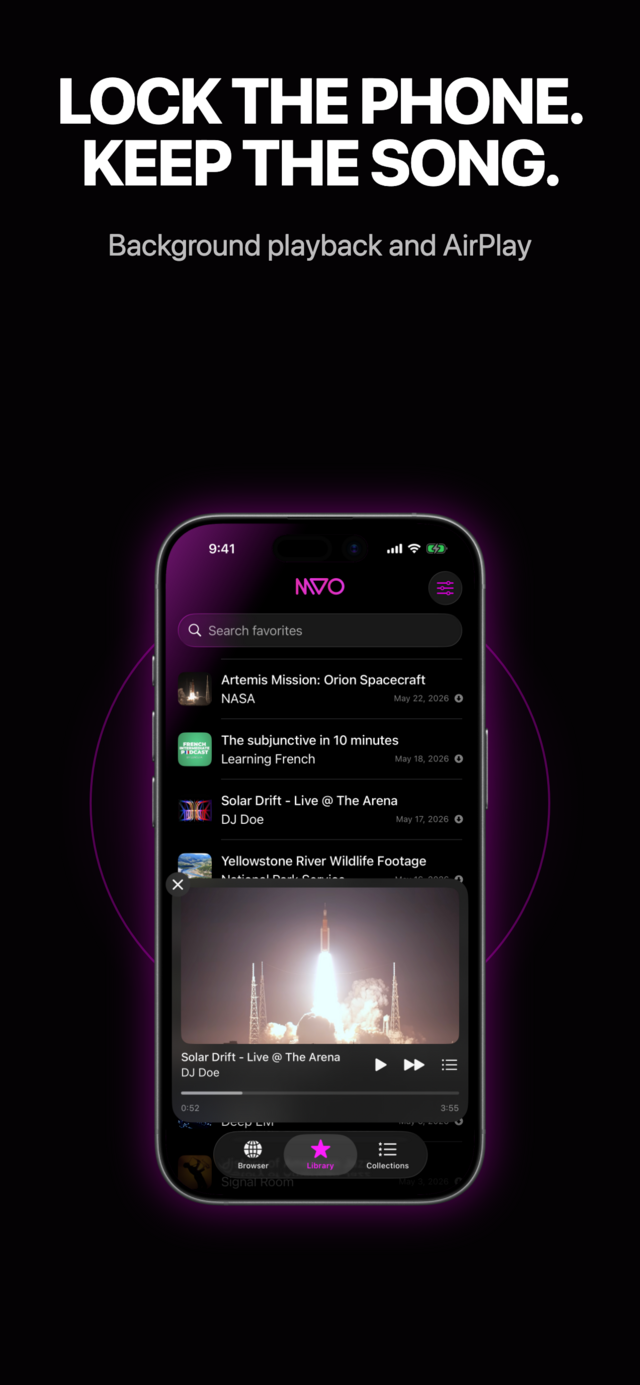
Quand un média en cache est en lecture, le mini-lecteur apparaît au-dessus de la barre d’onglets :
- Pochette, titre et artiste.
- Lecture / Pause et Suivant (désactivé quand rien n’est à suivre et que la répétition est désactivée).
- File d’attente (icône de liste), ou touchez le titre, pour ouvrir la file d’attente.
- Une barre de progression avec le temps écoulé et la durée totale. Faites-la glisser pour avancer ou reculer.
- Fermer (X, en haut à gauche) arrête la lecture et vide la file d’attente.
Pour les vidéos, une bande d’aperçu s’affiche, sauf si Audio uniquement est activé. Touchez-la pour passer en plein écran.
File d’attente
La file d’attente comporte trois sections :
- Historique : les titres déjà lus pendant cette session.
- À l’écoute : le titre en cours. La liste défile jusqu’à lui à l’ouverture.
- À suivre : ce qui sera lu ensuite.
Touchez n’importe quel titre pour y passer directement, ou touchez À l’écoute pour lancer ou mettre en pause. Balayez vers la gauche un titre de À suivre pour le retirer de la file d’attente.
Le bas de l’écran reprend les commandes de lecture et ajoute :
- Lecture aléatoire : mélange uniquement les titres à suivre.
- AirPlay : envoie l’audio ou la vidéo vers une Apple TV, une enceinte AirPlay ou un appareil Bluetooth.
- Répétition : désactivée (arrêt à la fin), Tout répéter (la file d’attente tourne en boucle) ou Répéter le titre (le titre en cours tourne en boucle). Suivant passe quand même au titre suivant en mode Répéter le titre.
Touchez Terminé en haut à droite pour fermer la file d’attente.
Vidéo en plein écran
Touchez la bande vidéo du mini-lecteur. Utilisez les commandes du système pour lire, mettre en pause, avancer ou reculer, et utiliser AirPlay. Balayez vers le bas pour fermer.
Écran verrouillé et Centre de contrôle
La lecture continue écran verrouillé. Depuis l’écran verrouillé et le Centre de contrôle, vous pouvez lire, mettre en pause, passer au titre suivant ou précédent et vous déplacer dans le titre. Précédent n’est disponible qu’à ces endroits, pas dans l’app.
Réglages
Ouvrez les Réglages avec l’icône de curseurs en haut à droite de l’onglet Bibliothèque. Touchez Terminé pour les fermer.
Synchronisation de la bibliothèque avec iCloud
Vos favoris, collections et signets sont synchronisés avec votre compte iCloud. Après une réinstallation de MVO, ou sur un nouvel iPhone avec le même compte, votre bibliothèque revient.
- Synchronisé : titres, liens, auteurs, collections, signets, positions de reprise et état du cache.
- Non synchronisé : médias en cache, vignettes et copies de pages. Sur un nouvel appareil, les favoris apparaissent sous forme de liens jusqu’à ce que vous les remettiez en cache.
Vous devez être connecté à iCloud, avec iCloud activé pour MVO dans l’app Réglages d’iOS. Si vous passez à un autre compte iCloud, la bibliothèque de l’appareil est remplacée par celle de ce compte. Réglages → Infos affiche Bibliothèque synchronisée avec iCloud quand la synchronisation est active.
Lecture
- Audio uniquement : masque la vidéo dans le lecteur et affiche la pochette à la place. Cela ne change pas ce qui est mis en cache.
- Lecture automatique du morceau suivant : passe au titre suivant à la fin du titre en cours. Désactivé, la lecture s’arrête après le titre en cours (sauf si la répétition est activée).
- Reprendre la lecture là où elle s’est arrêtée : chaque favori reprend là où vous l’avez arrêté (activé par défaut).
Affichage
- Forcer le mode sombre : garde l’app en mode sombre.
Cache
- Importer comme collection : propose d’enregistrer une collection entière quand un lien en fait partie (désactivé par défaut).
Nettoyage
- Nombre de favoris et Taille sur le disque indiquent la taille de votre bibliothèque et l’espace occupé par le cache.
- Vider le cache : supprime tous les médias en cache. Les favoris restent sous forme de liens.
- Supprimer toute la bibliothèque : supprime toute votre bibliothèque et son cache. Cette action est irréversible.
Les deux actions demandent une confirmation.
Supprimer les données d’utilisation
MVO envoie des statistiques d’utilisation anonymes (écrans consultés et actions comme l’ajout d’un favori, la lecture d’un média ou les achats), associées à un identifiant aléatoire créé sur votre appareil. Aucun nom, e-mail, identifiant publicitaire ni historique de navigation n’est envoyé. Touchez Supprimer les données d’utilisation et confirmez pour supprimer les statistiques envoyées depuis cet appareil. MVO utilise ensuite un nouvel identifiant aléatoire.
Autres liens
- Premium : ouvre la fenêtre Premium.
- Notez-nous sur l’App Store : laissez un avis.
- Aide : cette page.
- Confidentialité et conditions : politique de confidentialité et conditions d’utilisation.
- Droits d’auteur : notre page sur les droits d’auteur.
- Nos autres apps : le site du développeur.
Premium
Sans Premium, votre bibliothèque peut contenir jusqu’à 10 favoris. Premium permet d’aller au-delà.
Favoris restants
Un badge rouge en haut de l’onglet Bibliothèque indique combien de favoris vous pouvez encore ajouter. Touchez-le pour ouvrir la fenêtre Premium.
À la limite
- L’ajout d’un favori est bloqué dès que vous avez 10 favoris, et la fenêtre Premium s’ouvre.
- La mise en cache est bloquée quand votre bibliothèque compte plus de 10 favoris.
- L’import d’une collection entière n’ajoute que le nombre d’éléments pour lequel il reste de la place.
Fenêtre Premium
Ouvrez-la depuis le badge, depuis Réglages → Premium ou depuis n’importe quelle action bloquée. Elle affiche Passer à Premium, ou Merci si vous êtes déjà abonné. Choisissez un abonnement, ou touchez Restaurer les achats pour récupérer un abonnement existant. Touchez Fermer en haut à droite pour la fermer. Si vous vous abonnez après une action bloquée, cette action se termine automatiquement.
Obtenir MVO
Naviguez, enregistrez et écoutez votre musique et vos vidéos partout, sans réseau.