Help & Support
For help and support, contact us by email at [email protected].
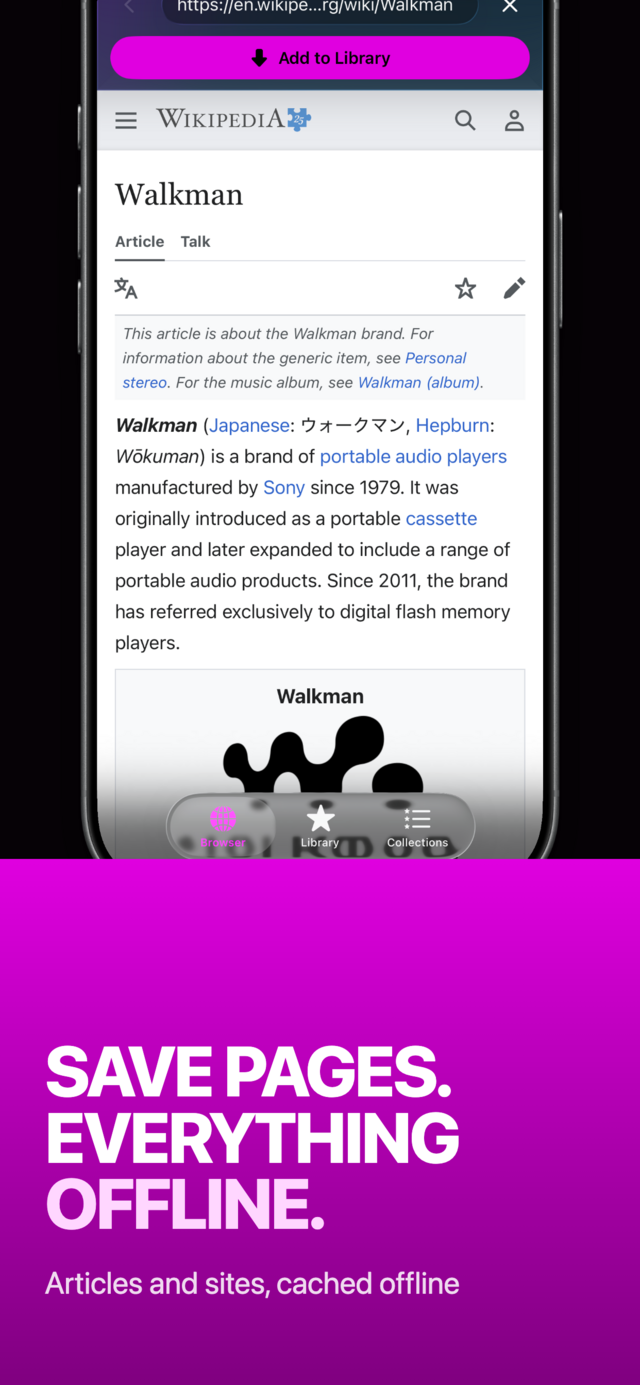
MVO is an in-app web browser and media library for iPhone. Browse sites inside the app, add pages to your library, save their music and videos to your device cache, and play everything with no network. Save only content you are allowed to keep.
 |
 |
 |
Getting started
MVO has three tabs:
- Browser: visit sites and add pages to your library.
- Library: everything you have saved.
- Collections: your favorites grouped into named collections.
The app reopens on the last tab you used. When something is playing, a mini-player sits above the tab bar on every tab. MVO uses dark mode and shows no third-party ads.
New to MVO? Read how to listen to music without internet on iPhone.
Library
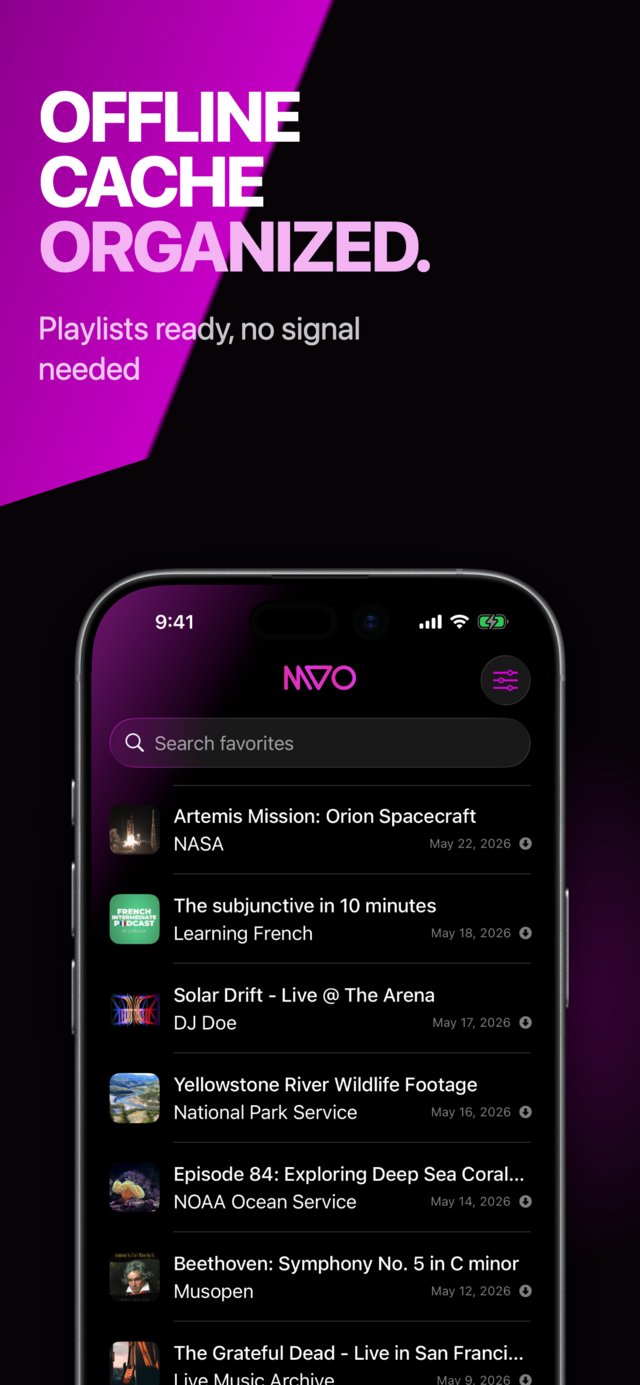
The Library tab lists every favorite you have saved, newest first.
Rows and status icons
Each row shows a thumbnail, the title and the author. At the bottom right you see the duration for cached audio and video, or the date added for pages and links. The icon on the right shows the cache status:
- Dotted circle: link only, not saved to cache yet.
- Document: a saved page snapshot (the page as it was when you added it).
- Filled down-arrow circle: the media is in cache.
- Exclamation mark: the last attempt to save to cache failed.
Search
Pull down or tap the Search favorites field at the top. Search matches favorite titles only.
Opening a favorite
- Cached media: playback starts and the mini-player appears. The queue is built from the cached favorites in the current list, including any search filter.
- Saved page snapshot: the Browser tab opens the saved copy of the page. The address bar shows a document icon and the favorite title.
- Link only: the Browser tab opens the original page.
Row actions
Long-press a row, or swipe right and tap Action, to open the menu:
- Select: start multi-select with this row selected.
- Save to cache: save the media to your device (shown when it is not cached yet).
- Try again to save to cache: shown after a failed attempt.
- Collections: add the favorite to collections or remove it.
- Edit: change the title and author, then tap Save.
- Delete: remove the favorite and its cache.
You can also swipe left on a row and tap Delete.
Undo a deletion
After you delete one or more favorites, a banner with Undo appears at the top for about five seconds. Tap Undo to restore them. Swipe the banner up to confirm right away, or let it disappear.
Multi-select
Choose Select in the row menu. Tap rows to select or deselect them (a checkmark appears). The tab bar is replaced by a bottom bar:
- Done: leave multi-select.
- Add to collection: add all selected favorites to a collection.
- Delete: delete all selected favorites (with the same Undo banner).
Empty library
With no favorites, or no search results, you see No favorites yet. Add pages from the Browser to fill your library.
Collections
Collections group your favorites, like playlists. A favorite can belong to several collections.
Create and manage collections
- Create: tap + at the top left, enter a name in Create a Collection and tap Create.
- Rename or delete: long-press a collection and choose Edit or Delete, or swipe left and tap Delete.
- Undo: a banner with Undo appears for about five seconds after deleting.
Deleting a collection never deletes the favorites in it. They stay in your library.
Sort collections
Tap the sort icon at the top right and choose A-Z, Z-A, Recent (default) or Oldest. MVO remembers your choice.
Inside a collection
Tap a collection to see its favorites. The list works like the Library tab: search, row actions, multi-select, saving to cache and playback. The sort menu offers A-Z, Z-A, Recent, Oldest and Random. Choose Random again for a new shuffle.
Add favorites to a collection
Choose Collections in a favorite's menu, or Add to collection in multi-select. Tap a collection to add or remove; a checkmark shows membership. Tap Cancel at the top right to close without changes. If you have no collections yet, create one in the Collections tab first.
Learn more in how to organize music and videos into playlists on iPhone.
Browser
The Browser tab is where you find content. When you reopen MVO, it reloads the last page you were viewing.
Home screen and bookmarks
With no page loaded, the Browser shows Start browsing now and your bookmarks. Tap a bookmark, or tap the address bar to visit a site. Bookmarks are synced with your library through iCloud.
Address bar and controls
- Back (chevron): go back one page. From a saved page snapshot with no history, Back returns to the home screen.
- Address bar: tap it to edit the current address. Type in Search or enter URL and tap Go to open a site or run a web search.
- Clear (X): open the address editor with an empty field.
- Cancel (X, while editing): close the editor without loading anything.
You can also swipe from the screen edge to go back or forward. If a page fails to load, you see Cannot connect with a Retry button.
Add to Library
Open a page and tap Add to Library:
- If the page is already saved, MVO shows Already in favorites.
- Otherwise MVO checks the link for media. Tap Cancel on the overlay to stop; nothing is added.
- Media found: the favorite is added, MVO switches to the Library tab and starts saving the media to cache.
- Collection found (an album, a radio, a list of videos): see Import a whole collection below.
- No media found: MVO offers to save the page to cache. Tap Yes to save a copy of the page you can read with no network, or Cancel. If the copy cannot be made, the page is added as a link.
Saving to cache
Saving to cache stores media on your device so you can play it with no network. Start it with Add to Library in the Browser, or with Save to cache on any favorite.
Link check
MVO always checks the link first, as in the Browser:
- Media found: caching starts.
- Collection found: see below.
- No media found: MVO asks whether to save the page to cache instead. A page snapshot needs a network connection to load the live page.
Import a whole collection
Turn on Settings → Cache → Import as collection (off by default). When a link belongs to a collection, MVO asks whether to save Only one media or All the collection. Choosing all adds every entry as a favorite, creates a matching collection and saves each one to cache. With the setting off, only the media itself is added.
Progress
While caching, an overlay shows Caching…, the favorite title and link, and a progress bar with a percentage:
- When video and audio are fetched separately, video fills the first 70% of the bar and audio the rest.
- Finalizing… appears while the video and audio are combined.
- Cached X of Y appears when several favorites are being saved.
When caching completes, the row shows the filled down-arrow icon. The title and author may update from the media details. MVO always saves the best available format; to hear only the sound, use Audio only in Settings.
Cancel
Tap Cancel on the overlay to stop at any step. If several favorites are waiting, Cancel stops them too.
Leaving the app
A cache job keeps running when you leave MVO, from the link check to the end, including jobs waiting in line. iOS shows the progress (Checking link…, Caching…, Finalizing…) while the app is in the background. If iOS stops the job because the device is low on resources, save it to cache again. When the system does not allow background work, the job pauses and resumes when you come back.
If caching fails
An error message appears with OK and the row shows an exclamation mark. Open the row menu and tap Try again to save to cache.
Share extension
Add a link to MVO from Safari or any app with a Share button:
- Tap Share in the other app.
- Choose MVO in the share sheet.
- MVO opens on the Browser tab, loads the link and adds it to your library with the same checks as Add to Library.
If the link is already saved, MVO shows Already in favorites. See how to save a link from Safari or any app to MVO.
Player
Mini-player
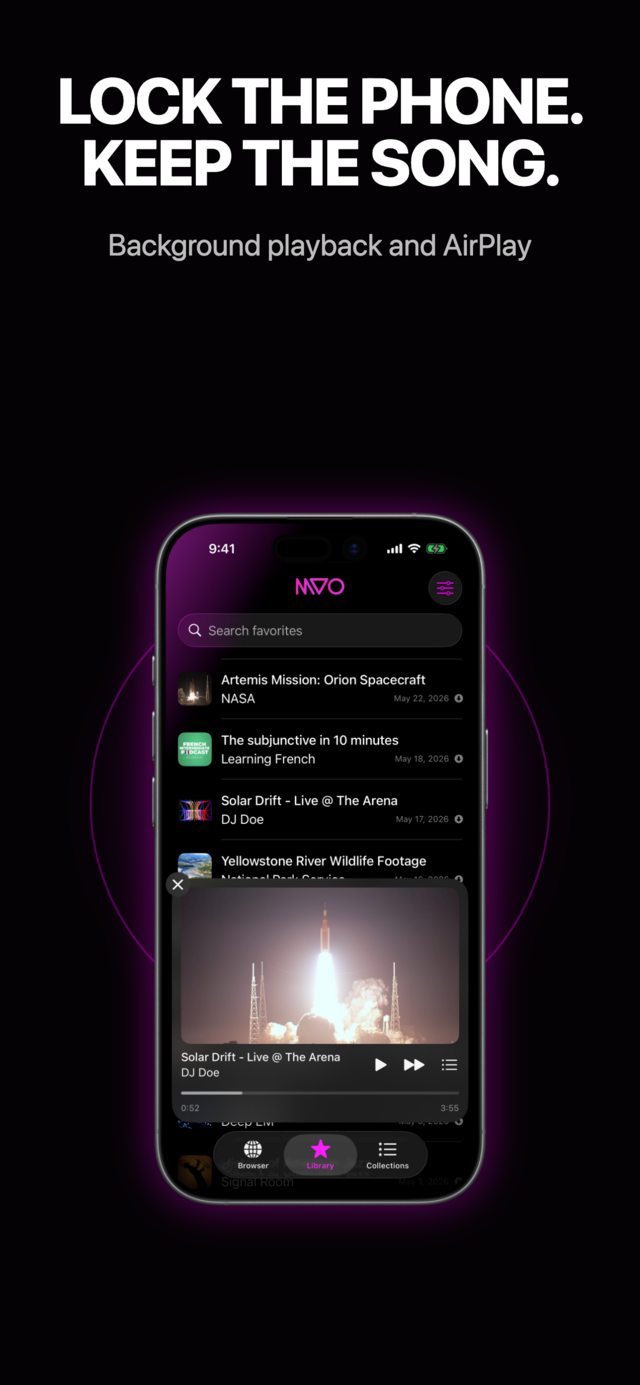
When cached media plays, the mini-player appears above the tab bar:
- Artwork, title and artist.
- Play / Pause and Next (disabled when nothing is up next and repeat is off).
- Queue (list icon), or tap the title, to open the queue.
- A progress bar with elapsed and total time. Drag it to seek.
- Close (X, top left) stops playback and clears the queue.
For videos, a preview strip appears unless Audio only is on. Tap it for fullscreen.
Queue
The queue has three sections:
- Previously Played: tracks already played in this session.
- Now Playing: the current track. The list scrolls to it when opened.
- Upcoming: what plays next.
Tap any track to jump to it, or tap Now Playing to play or pause. Swipe left on an Upcoming track to remove it from the queue.
The footer repeats the play controls and adds:
- Shuffle: mixes the upcoming tracks only.
- AirPlay: send audio or video to an Apple TV, AirPlay speaker or Bluetooth device.
- Repeat: Off (stop at the end), Repeat All (loop the queue) or Repeat One (loop the current track). Next still skips ahead in Repeat One.
Tap Done at the top right to close the queue.
Fullscreen video
Tap the video strip in the mini-player. Use the system controls to play, pause, scrub and AirPlay. Swipe down to close.
Lock screen and Control Center
Playback continues with the screen locked. From the lock screen and Control Center you can play, pause, skip to the next or previous track and scrub. Previous is only available there, not in the app.
Settings
Open Settings with the slider icon at the top right of the Library tab. Tap Done to close.
iCloud library sync
Your favorites, collections and bookmarks are synced with your iCloud account. After reinstalling MVO, or on a new iPhone with the same account, your library comes back.
- Synced: titles, links, authors, collections, bookmarks, resume positions and cache status.
- Not synced: cached media, thumbnails and page snapshots. On a new device, favorites appear as links until you save them to cache again.
You must be signed in to iCloud with iCloud turned on for MVO in the iOS Settings app. If you switch to another iCloud account, the library on the device is replaced by that account's library. Settings → Info shows Library synced with iCloud when sync is active.
Playback
- Audio only: hide video in the player and show artwork instead. It does not change what is saved to cache.
- Auto play next song: continue to the next track when one ends. When off, playback stops after the current track (unless repeat is on).
- Resume playback where you left off: each favorite restarts where you stopped (on by default).
Display
- Force dark mode: keep the app in dark mode.
Cache
- Import as collection: offer to save a whole collection when a link belongs to one (off by default).
Cleanup
- Number of favorites and Size on disk show your library size and the space used by the cache.
- Clear cache: remove all cached media. Favorites stay as links.
- Delete all library: remove your whole library and its cache. This cannot be undone.
Both actions ask for confirmation.
Delete usage data
MVO sends anonymous usage statistics (screens visited and actions such as adding a favorite, playing media or purchases) tied to a random identifier created on your device. No name, email, advertising identifier or browsing history is sent. Tap Delete usage data and confirm to delete the statistics sent from this device. MVO then uses a new random identifier.
Other links
- Premium: open the Premium sheet.
- Rate us on the App Store: leave a review.
- Help: this page.
- Privacy and Terms: privacy policy and terms of use.
- Copyright Notice: our copyright page.
- Our other apps: the developer website.
Premium
Without Premium, your library holds up to 10 favorites. Premium lets your library grow beyond that.
Remaining favorites
A red badge at the top of the Library tab shows how many favorites you can still add. Tap it to open the Premium sheet.
At the limit
- Adding a favorite is blocked once you have 10 favorites, and the Premium sheet opens.
- Saving to cache is blocked when your library has more than 10 favorites.
- Importing a whole collection adds only as many entries as you have room for.
Premium sheet
Open it from the badge, from Settings → Premium or from any blocked action. It shows Go Premium, or Thank you if you already subscribe. Choose a subscription, or tap Restore Purchases to recover an existing one. Tap Close at the top right to dismiss it. If you subscribe after a blocked action, that action completes automatically.
Get MVO
Browse, save and play your music and videos anywhere, with no network.