How to Listen to Music on a Plane with Your iPhone
To listen to music on a plane with your iPhone, save your songs and videos to the phone before you board, then play them in airplane mode. Once the media is stored on the device, you need neither in-flight Wi‑Fi nor a mobile signal.
This guide walks you through a simple pre-flight routine with MVO: Offline Music & Video, an in-app browser and media player for iPhone and iPad.
Why music apps go quiet at 35,000 feet
In airplane mode, your iPhone cuts its cellular connection. Anything that streams from the internet stops as soon as its small buffer runs out, and in-flight Wi‑Fi, when there is any, is often slow or patchy. The only reliable plan is to have the audio already on your iPhone when the doors close.
MVO is built around that idea: you find music and videos on the web inside the app, save them to the cache on your device, and play them later with no network at all.
Step by step: prepare your flight playlist with MVO
1. The day before: find what you want to hear
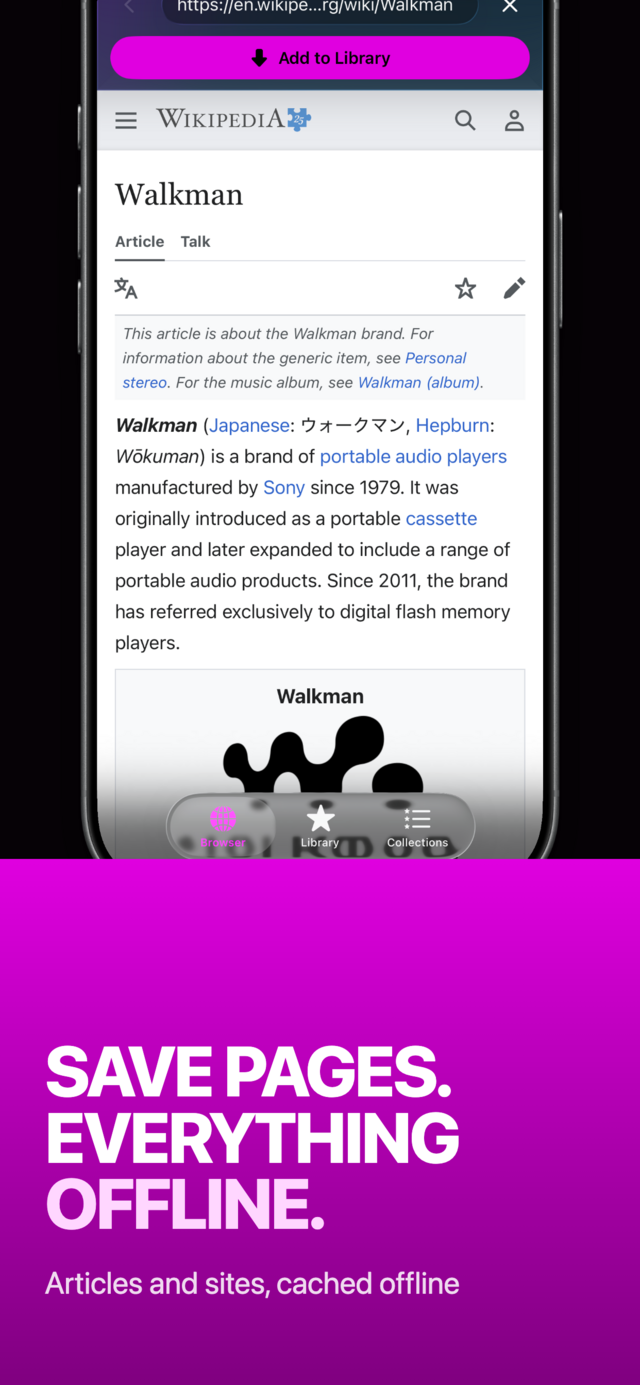
Open the Browser tab and visit the sites you usually use for music, mixes, talks or videos. It works like a regular web browser, with an address bar for URLs and searches.
 |
 |
 |
2. Tap Add to Library on each track
On a page with music or video, tap Add to Library. MVO saves the media to its cache and adds it to your Library, with its title, artist and artwork. A small filled arrow icon on the row tells you the item is in cache and ready for the flight.
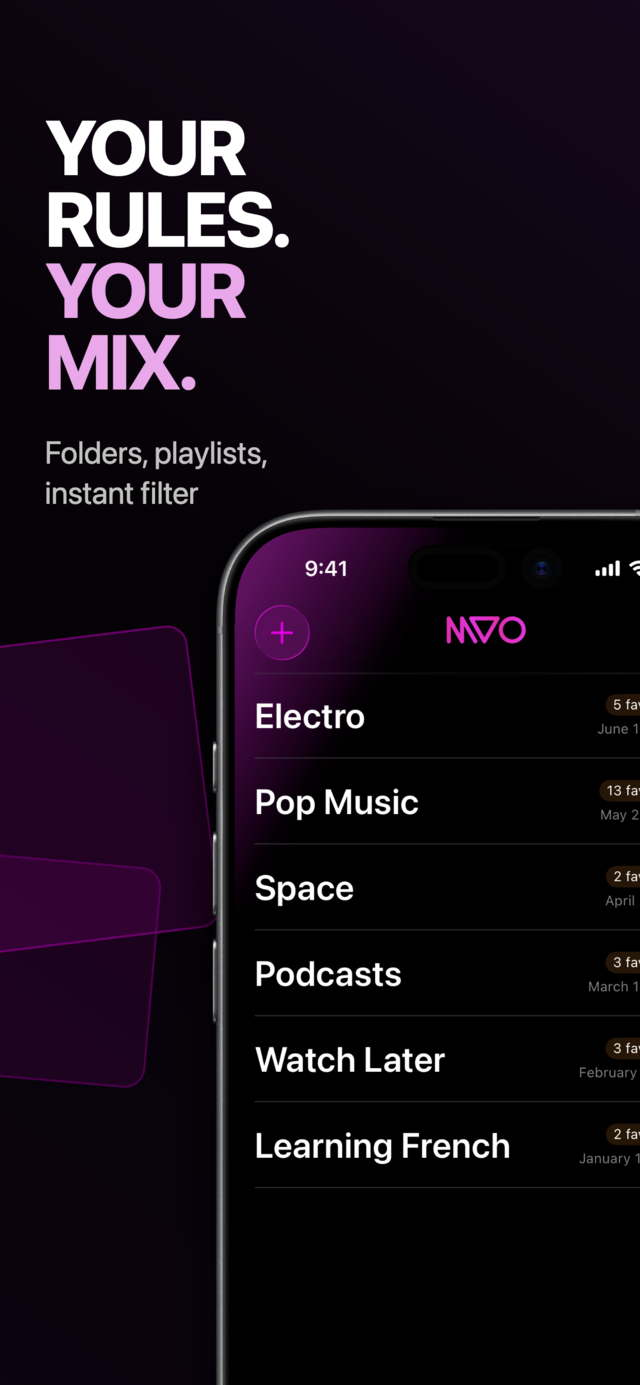
3. Build a collection for the trip
Go to the Collections tab, tap + and name it, for example "Flight to Lisbon". Then long-press songs in your library, choose Collections and tick your new collection. On board, you open it and press play: no scrolling through your whole library in a cramped seat.
4. Test it in airplane mode before you leave
Switch on airplane mode at home and play a few items. If something does not play, it is not in cache yet: long-press it and choose Save to cache while you still have Wi‑Fi.
5. On the plane: play, lock, relax
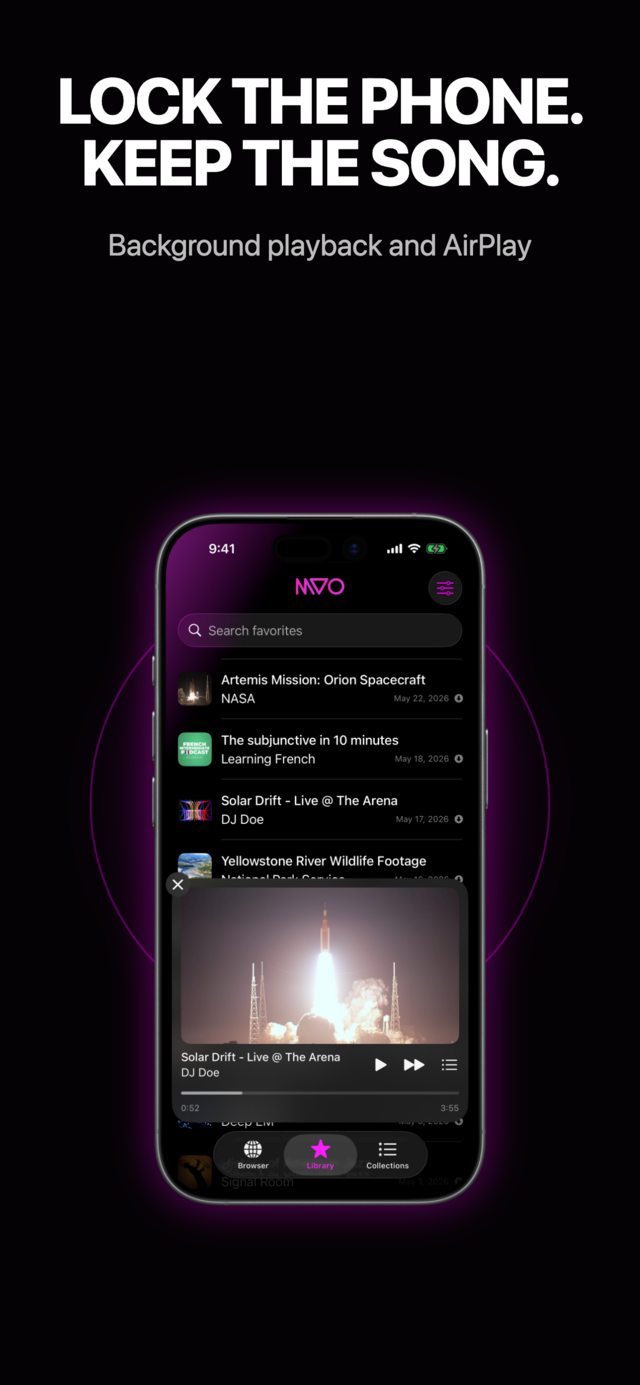
Turn on airplane mode as instructed by the crew and press play. Lock your iPhone: the music keeps going in the background, with play, pause, next and previous on the lock screen and in Control Center.
Save only content you are allowed to keep.
Tips for a long-haul flight
- Mix music and video. MVO keeps both. Save a film-length video or a concert for the long stretch, and songs for take-off and landing.
- Let the queue run. With Auto play next song on (in Settings, under Playback), the next track starts by itself. Open the queue to use Shuffle or Repeat, and swipe away anything in Upcoming you don't want.
- Pick up where you dozed off. With Resume playback where you left off turned on, each item remembers where you stopped, which is handy for long mixes, audiobooks and lectures.
- Just want the sound? Use Audio only. If you only want to hear a music video, turn on Audio only in Settings: the player hides the picture and shows artwork and controls instead.
- Check your storage first. Videos take much more room than songs. Settings → Cleanup shows the Size on disk of your cache.
- Start saving early. On iOS 26 and later, a cache job keeps running if you switch to another app, so you can pack while your playlist fills up.
Wireless headphones and in-flight screens
MVO plays through whatever audio route your iPhone uses, including Bluetooth headphones. From the queue sheet, the AirPlay button opens the system picker so you can choose a route. Your saved media lives on the phone, so it does not depend on the plane's entertainment system or Wi‑Fi package.
Frequently asked questions
Can I listen to music on a plane without paying for in-flight Wi‑Fi?
Yes. Anything already in your MVO library plays straight from your iPhone. Airplane mode, no Wi‑Fi and no mobile data make no difference to playback.
Will my music stop when the screen turns off?
No. MVO plays in the background. The track and artwork appear on the lock screen, and you can skip or pause without unlocking. See how to keep music playing with the screen locked.
Can I also watch videos during the flight?
Yes. Saved videos play full screen with the standard iPhone video controls. Our guide on watching videos offline on iPhone covers it in detail.
What if I forgot to save something before boarding?
You will need a connection to add it, so it will have to wait until you land or until the plane offers Wi‑Fi. That is why the airplane-mode test at home is worth the two minutes. For more everyday use, read how to listen to music without internet on iPhone or visit the MVO help page.
Get MVO
Build your flight playlist tonight and enjoy every minute of the trip with MVO on your iPhone or iPad.