Podcasts, Lectures and Lessons Offline on iPhone
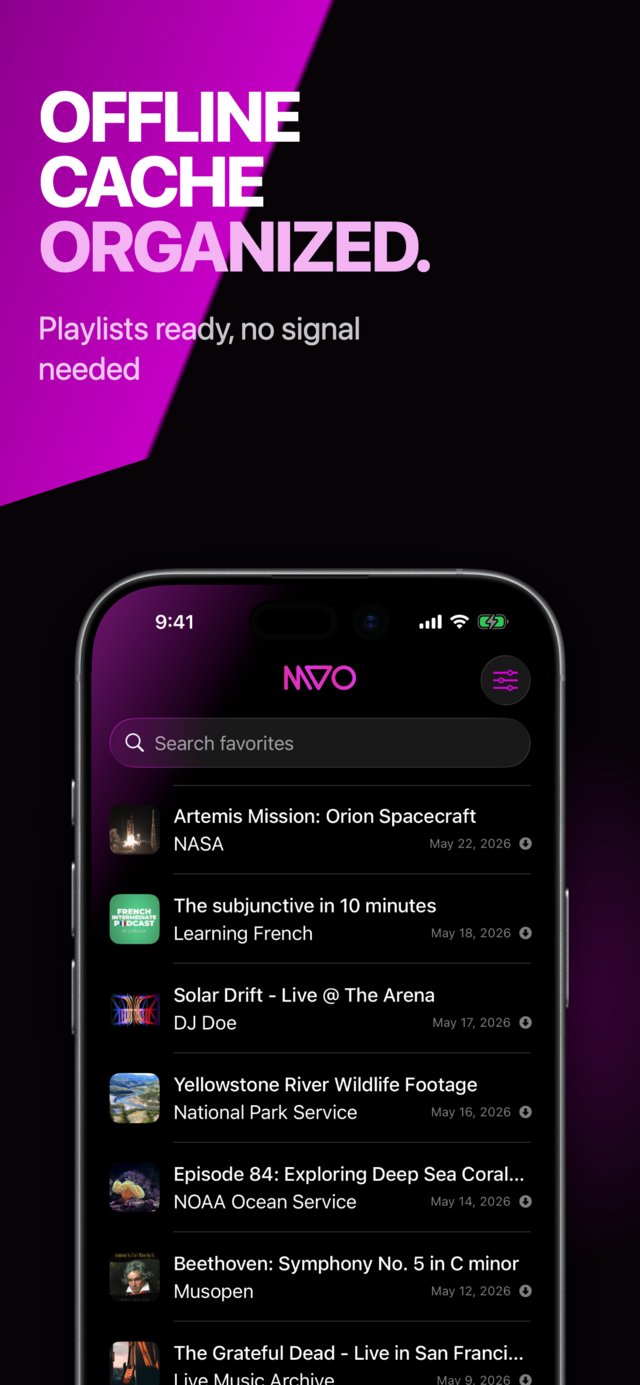
To follow podcasts, lectures and lessons offline, save each episode or class on your iPhone while you have Wi‑Fi, then play it from the device with the resume option turned on. In MVO: Offline Music & Video, every saved item remembers where you stopped, so a two-hour lecture can be split across a week of commutes without hunting for your place.
This guide is for long listening: courses, talks, interviews, audiobooks-style recordings and language lessons found on the web.
The problem with long recordings
A three-minute song is easy to restart. A ninety-minute class is not. Streaming players lose your spot when the signal drops in a tunnel, and many apps reset the position when you switch to another episode. Two things fix this: keep the recording on your iPhone, and let the player remember the position of each one.
Step by step: build an offline course in MVO
1. Save the episodes or lessons
Open the Browser tab, go to the page of the episode, talk or lesson, and tap Add to Library. MVO saves the audio or video to cache on your iPhone. Save only content you are allowed to keep.
If a page has no media, such as a syllabus, show notes or a transcript, MVO offers to save a snapshot of the page instead. Handy for reading along.
2. Check that resume is on
Open Settings from the Library tab (slider icon). Under Playback, make sure Resume playback where you left off is turned on. It is on by default on a new install.
 |
 |
 |
3. Group each course or series in a collection
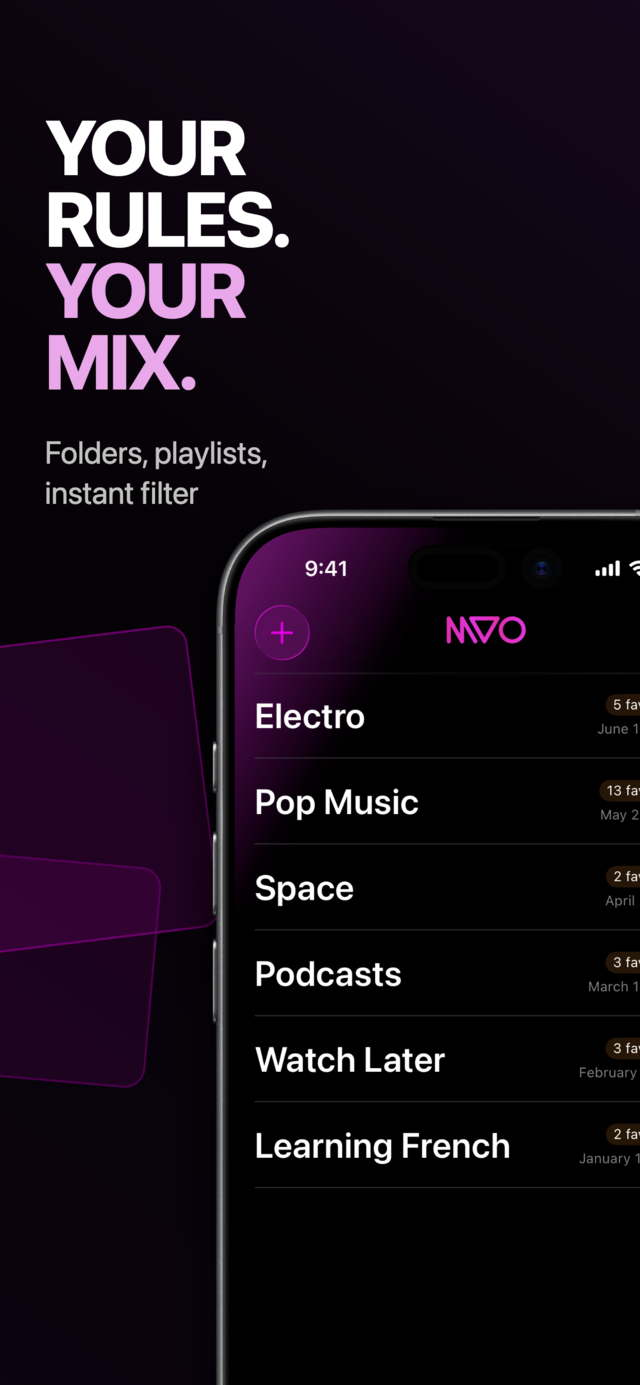
In the Collections tab, tap + and create one collection per course or show ("Spanish A2", "History lectures"). Add each saved item from the Library with a long-press and Collections.
4. Keep episodes in order
Inside a collection, open the sort menu and choose Oldest: items appear in the order you added them. Save lesson 1 first, then lesson 2, and the list reads like a syllabus. Use A-Z instead if the titles are numbered.
5. Listen, stop, come back later
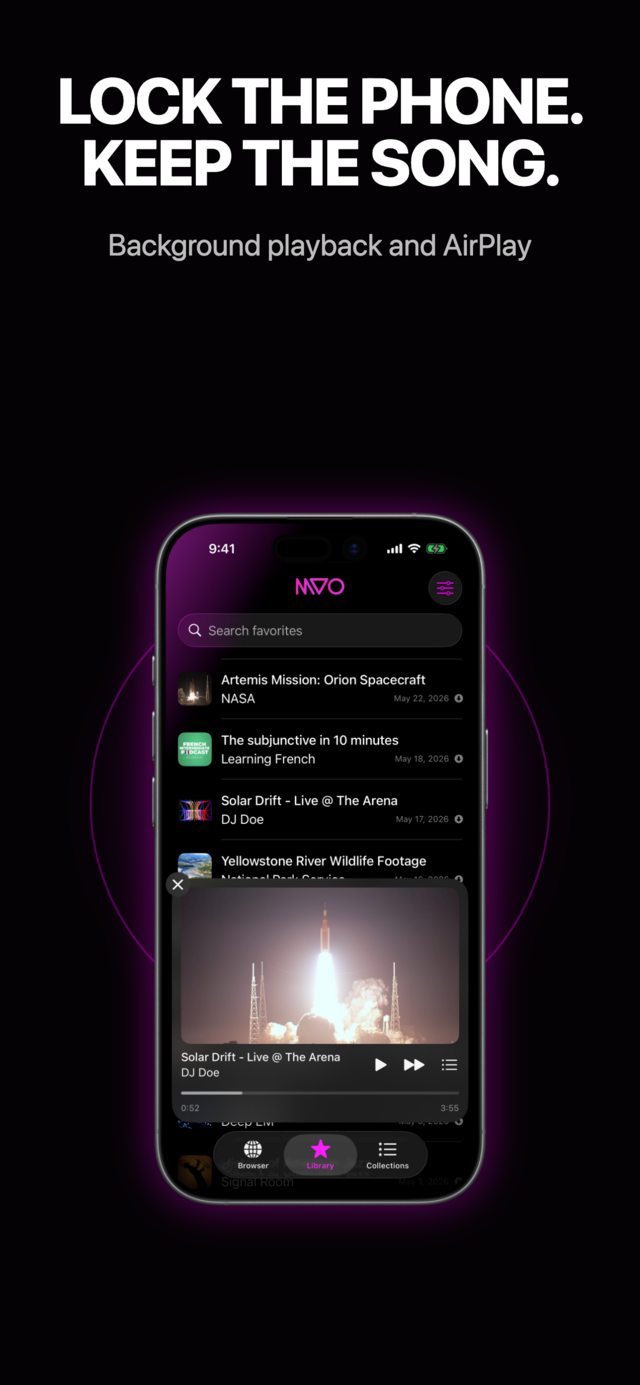
Tap a lesson and listen. Stop whenever you need to; next time you play that same item, MVO picks up from where you stopped. Each item keeps its own position, so you can jump between two courses without losing either place.
Settings that suit long listening
- Auto play next song: in Settings → Playback, turn it off if you want each lesson to stop at the end instead of starting the next one, a good habit when you take notes. Leave it on to binge a series.
- Audio only: many lectures and talks are videos. Turn on Audio only to listen with just artwork and controls, without the picture.
- Scrub from the lock screen: skip back a few minutes to replay a tricky explanation directly from the lock screen or Control Center, without unlocking.
- Long recordings: the player shows hours, not just minutes, for long videos and classes.
Study and commute tips
- Prepare on Wi‑Fi, listen anywhere. Saved lessons play with no network, on the subway, on a plane or abroad. See how to listen to music without using mobile data; the same applies to spoken content.
- Screen locked, lesson going. Playback continues in the background, see how to keep playing with the iPhone screen locked.
- Across devices. Your library, collections and resume positions are synced with iCloud. The media itself stays on each device, so save the lessons to cache on your iPad too.
- Clean up after a course. Delete finished lessons to recover space; Settings → Cleanup → Size on disk shows how much your cache uses.
Frequently asked questions
How do I resume a podcast where I left off on iPhone?
In MVO, turn on Settings → Playback → Resume playback where you left off. Each saved episode then restarts from the position where you stopped it.
Can I listen to lectures without internet?
Yes. Once a lecture is saved to cache, it plays from your iPhone with no Wi‑Fi and no mobile data.
Can I listen to a video lesson with the screen off?
Yes. MVO keeps playing in the background with the screen locked. Turn on Audio only if you prefer to hide the video entirely.
Does each lesson remember its own position?
Yes. The position is stored per item, so switching from one course to another never overwrites your place. For more, see the MVO help page.
Get MVO
Keep your podcasts, lectures and lessons on your iPhone and always pick up exactly where you stopped.