How to Watch Videos Offline on iPhone
To watch videos offline on iPhone, you need the video stored on the device itself, not streamed. With MVO: Offline Music & Video, you open the page in the app's browser, tap Add to Library, and the video plays full screen later with no Wi‑Fi and no mobile data.
Here is how it works, plus a few tips to get the most out of your saved videos on the train, in a waiting room or anywhere the signal is weak.
Streaming vs. a video saved on your iPhone
A streamed video arrives a few seconds at a time. In a tunnel, on a ferry or in a basement café, playback stalls, the quality drops, or the spinner never goes away. A video saved to your iPhone plays from local storage: it starts instantly, seeks instantly, and does not care about the network.
MVO combines an in-app web browser with a media library. Everything you add to the library is kept in the app's cache on your device.
Step by step: save and watch a video offline with MVO
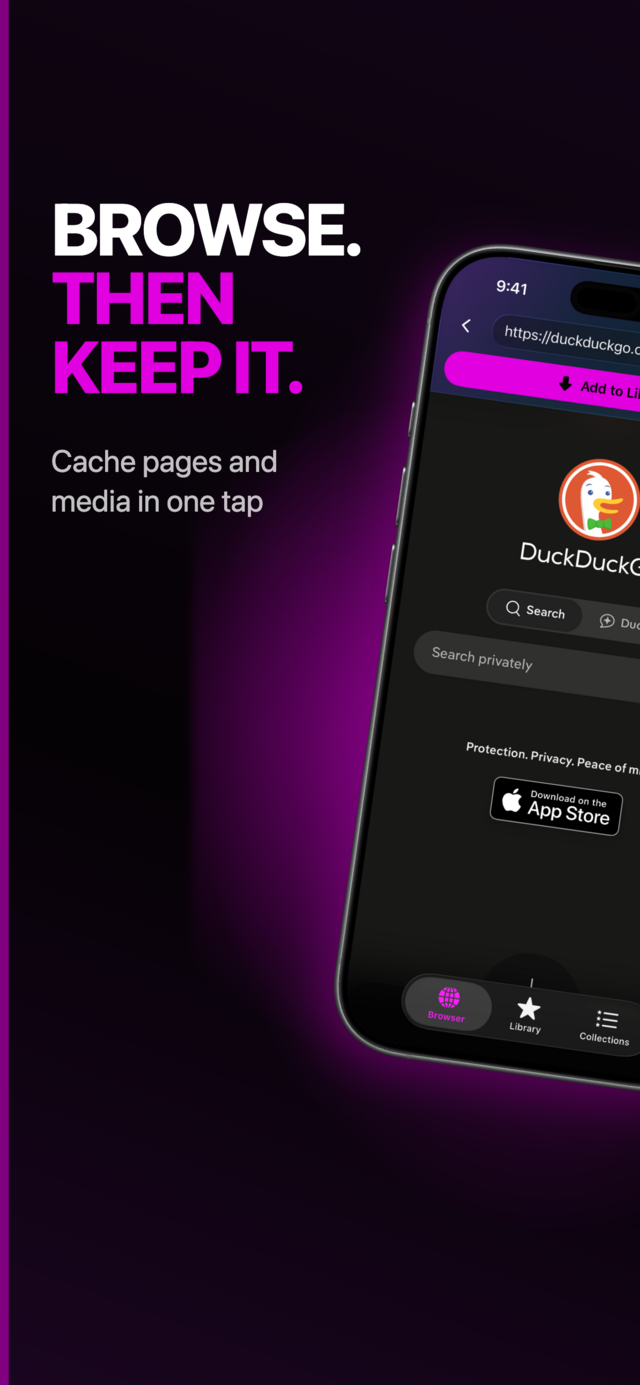
1. Open the video page in MVO
In the Browser tab, type an address or a search in the address bar and go to the page with the video. Swipe from the edge to go back or forward, as in any browser.
 |
 |
 |
2. Tap Add to Library
MVO checks the page for media, then saves the video to its cache. A progress bar shows how far along it is, then Finalizing… while the picture and sound are combined. You can tap Cancel at any time.
MVO always keeps the best available format, so you get the video, not just its soundtrack.
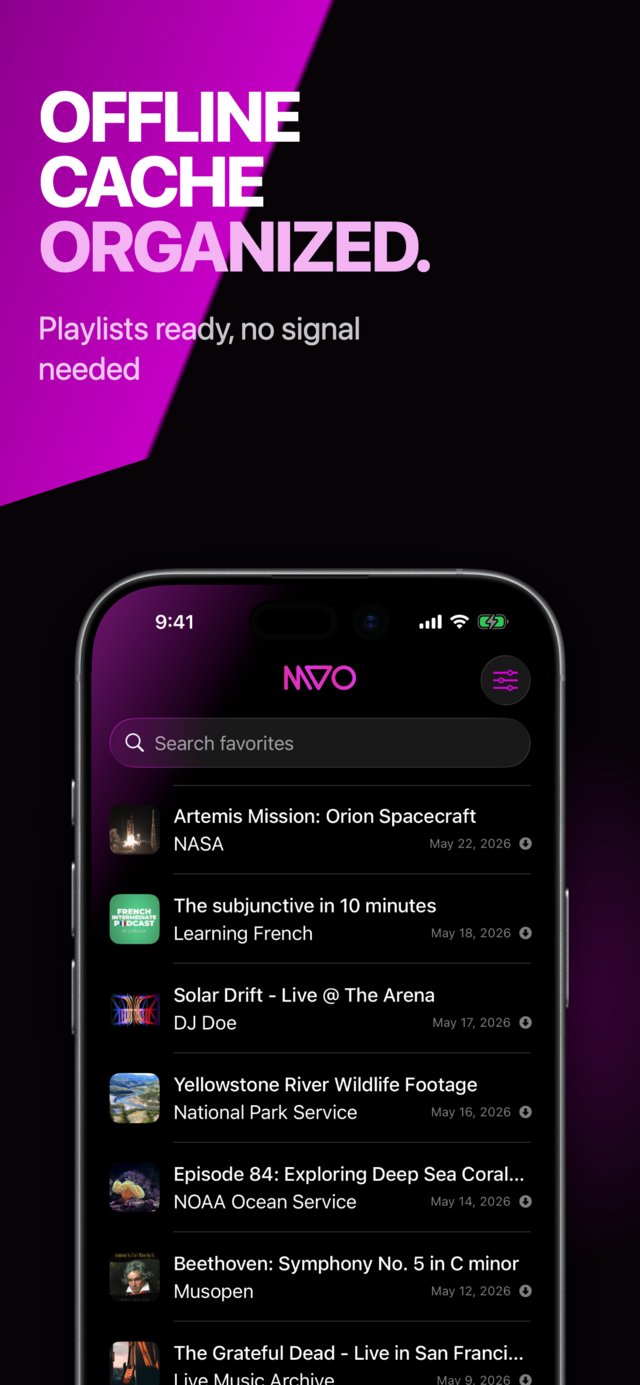
3. Watch it from your Library
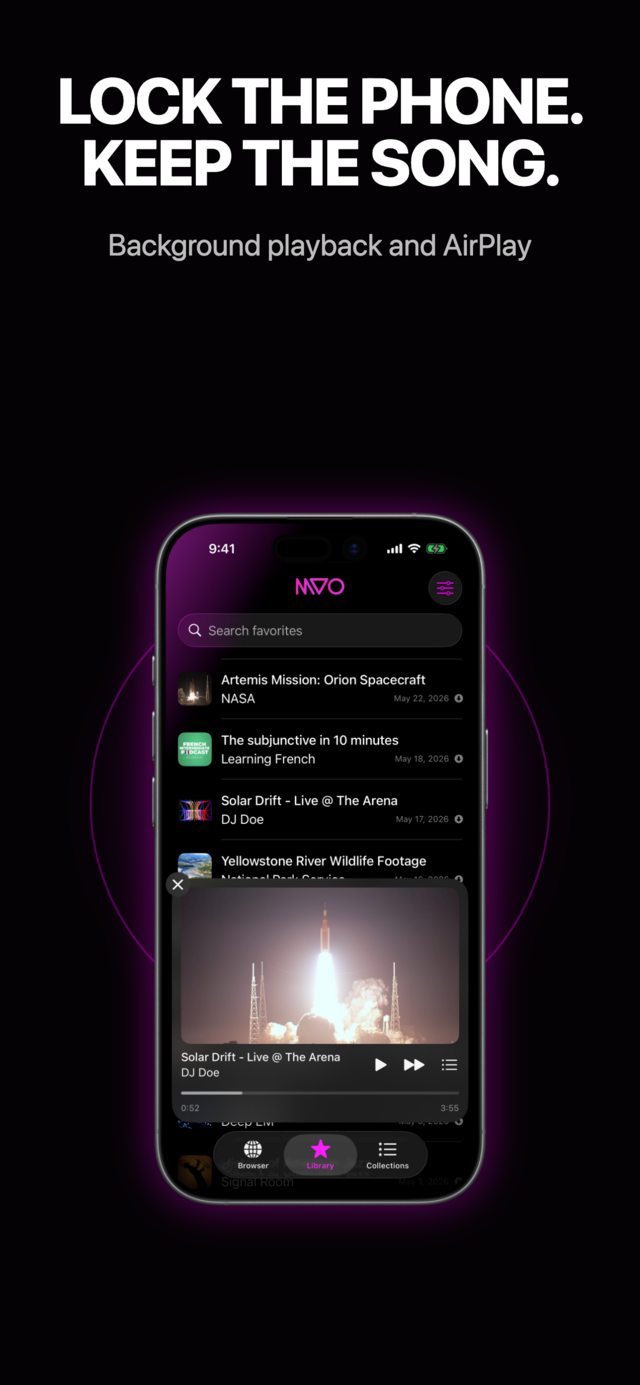
Open the Library tab. Each saved video shows its thumbnail, title and duration. Tap it: playback starts and a mini-player appears above the tab bar, with a small video preview.
4. Go full screen
Tap the video preview to switch to full screen. You get the standard iPhone video controls for play, pause and scrubbing. Swipe down to return to the app.
Save only content you are allowed to keep.
Tips for watching videos offline
- Resume long videos. With Resume playback where you left off turned on (it is on by default), each video remembers your position. Stop a documentary on the bus, pick it up at home. The player also shows hours for long videos.
- Save a whole series at once. Turn on Import as collection in Settings, under Cache. When a link belongs to a list of videos, MVO asks whether to save Only one media or All the collection.
- Watch on the big screen. From full screen or the queue sheet, use AirPlay to send your saved video to an Apple TV or another AirPlay device.
- Listen instead of watching. For concerts, talks and music videos, lock the screen and keep listening. Or turn on Audio only in Settings to hide the picture in the player without changing what is saved.
- Watch your storage. Videos are the largest items you can save. Settings → Cleanup shows the Size on disk; delete videos you have finished from the library to make room.
- Save before you leave. Add your videos on Wi‑Fi at home. On iOS 26 and later, saving continues even if you switch to another app.
Organize your videos
Long-press a video and choose Collections to file it under a theme: "Cooking", "Kids", "Workouts", "Trip". The Collections tab then gives you one tap access to each group, with sorting by name, date or Random. Learn more in our guide to organizing music and videos into playlists.
Frequently asked questions
Can I watch videos in airplane mode on iPhone?
Yes, as long as they are saved on the device first. Every video in your MVO library plays in airplane mode. For a full in-flight routine, see how to listen to music on a plane.
Where are my saved videos stored?
In MVO's cache on your iPhone, and you play them from the Library tab. Your library list (titles, links, collections) is also synced with iCloud, but the videos themselves stay on the device that saved them.
Does watching a saved video use mobile data?
No. Playback reads the video from your iPhone. Data is only used while you browse and save. Read more in how to listen to music without using mobile data.
Why does a video only show as a link in my library?
That item is not in cache yet, or the last attempt failed (an exclamation mark appears on the row). Long-press it and choose Save to cache or Try again to save to cache while you are online. The MVO help page has more details.
Get MVO
Fill your iPhone with videos for the road and watch them anywhere, even with no signal.