Music and Videos Abroad Without Roaming on iPhone
To enjoy music and videos abroad without paying for roaming, save them on your iPhone before you leave, then keep mobile data off for the whole trip. Everything you keep in MVO: Offline Music & Video plays from the device itself, so a foreign network, a weak hotel Wi‑Fi or no signal at all makes no difference.
Below: how to prepare at home, what to switch off when you land, and how to keep topping up your library on the way without touching your data plan.
Why roaming bills climb so fast
Streaming a playlist or a video series quietly uses data every minute it plays. At home that is part of your plan; abroad, the same minutes can be billed as roaming or burn through a small travel package in a day. The safe approach is to separate the two jobs: save on Wi‑Fi, play with data off.
Before you leave: build your travel library on Wi‑Fi
1. Find what you want for the trip
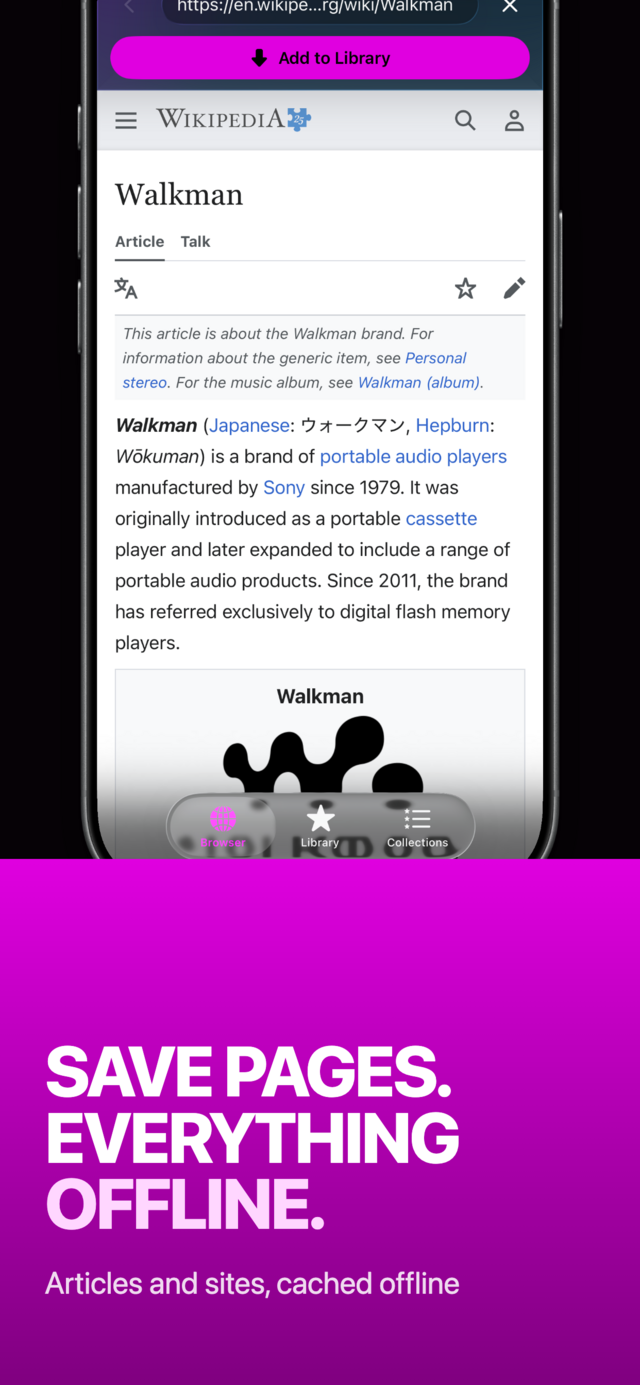
Open the Browser tab in MVO and visit the sites you normally use for music, concerts, travel vlogs or documentaries. It works like any web browser: type an address or a search in the Search or enter URL field.
 |
 |
 |
2. Tap Add to Library
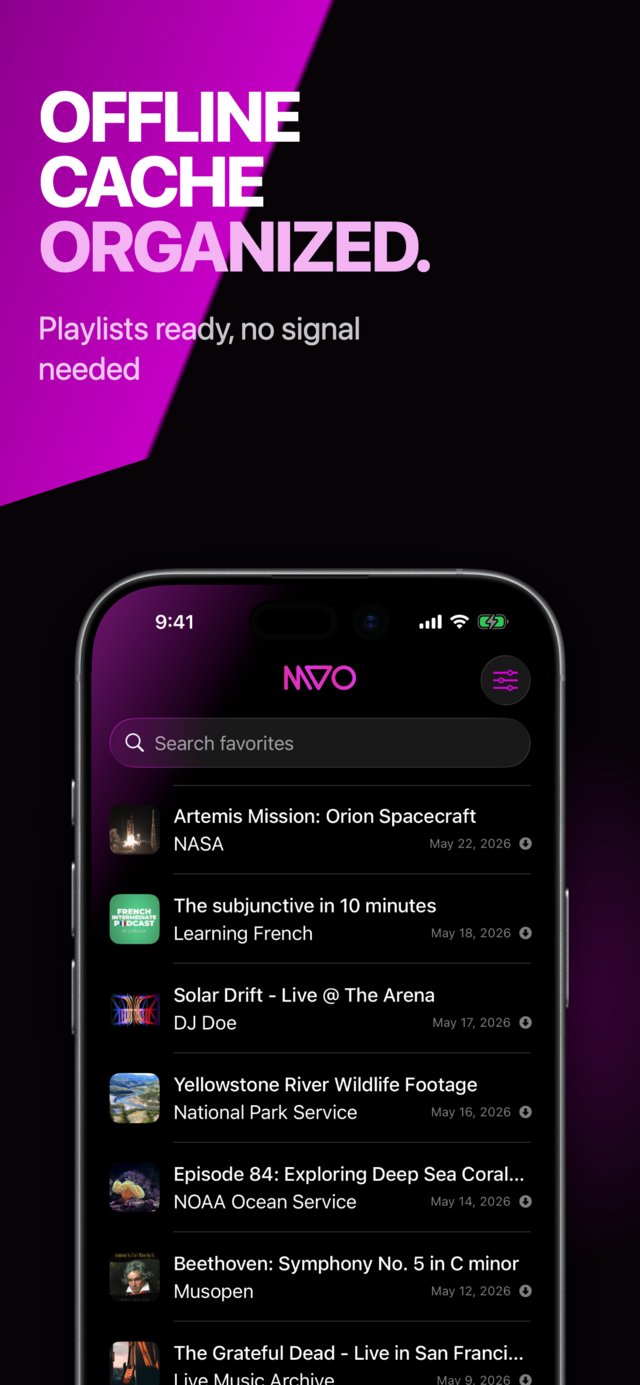
MVO checks the page, saves the music or video to its cache on your iPhone and lists it in the Library tab with its title and artwork. A filled arrow icon on the row tells you it is in cache and ready to play anywhere. Save only content you are allowed to keep.
3. Keep travel pages too
Hotel confirmation, a museum's opening hours, a walking-tour article: when a page has no media, MVO offers to save a snapshot of it instead. You can reread it later from your library, even with no connection.
4. Group everything in a collection
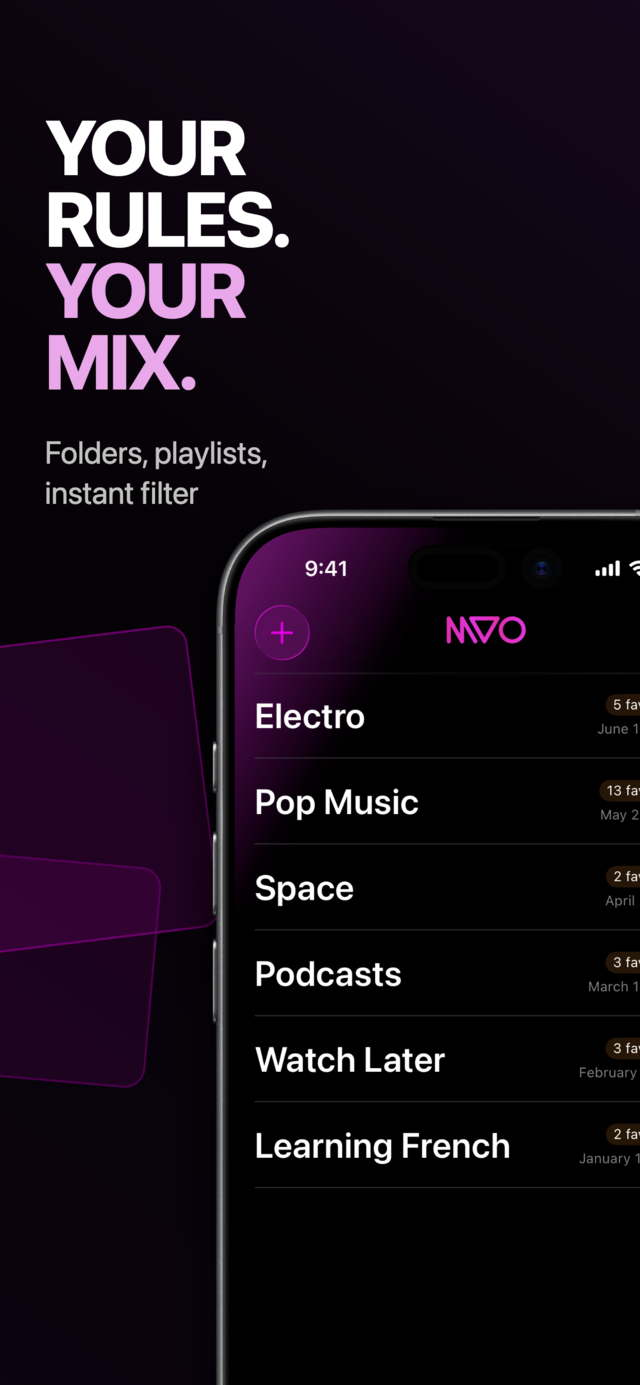
Create a collection called "Lisbon" or "Road trip" in the Collections tab and add your saved items to it. On the plane, in the train or at the beach, one tap starts the whole set.
When you land: switch data off and press play
- In your iPhone's Settings, under Cellular (called Mobile Data in some regions), turn off Data Roaming, or mobile data altogether.
- Open MVO and play anything from your Library or a collection.
- Lock the screen: playback continues in the background, with controls on the lock screen and in Control Center.
Because the media is stored on your iPhone, playing it uses no data at all, roaming or not.
Topping up during the trip
Found a great local band or a video you want for the flight home? Wait until you are on the hotel or café Wi‑Fi, then tap Add to Library as usual. On iOS 26 and later, a cache job keeps running if you switch to another app, so you can keep using your phone while it finishes.
Practical tips for travellers
- Check your storage first. In MVO's Settings → Cleanup, Size on disk shows how much space your cache uses. Videos take far more room than audio.
- Use Audio only for long videos. Turn on Settings → Playback → Audio only to listen to concerts or talks with just artwork and controls, without the video on screen.
- Bring the iPad too. Your library (titles, collections, resume positions) is synced with iCloud. The media itself stays on each device, so save to cache on the iPad as well before you go.
- Plan for the queue. Shuffle, Repeat All or Repeat One in the queue sheet keep a long journey going without touching the phone.
For flights specifically, see how to listen to music on a plane, and for daily savings at home, how to listen to music without using mobile data.
Frequently asked questions
Does playing saved music abroad use roaming data?
No. Once an item is in your MVO cache, it plays from your iPhone. You can keep Data Roaming off for the whole trip.
Can I watch videos on the plane or train without Wi‑Fi?
Yes. Saved videos play in the mini-player or in fullscreen with no connection. Prepare them on Wi‑Fi before you leave.
Will my library be there if I switch to a local SIM?
Yes. The cache lives on your iPhone, not on your SIM or carrier, so changing SIM or eSIM changes nothing.
What if I need more music halfway through the trip?
Connect to Wi‑Fi at the hotel or a café and add it from the Browser tab. Need help? Visit the MVO help page.
Get MVO
Fill your iPhone with music and videos before you travel, and leave roaming off with peace of mind.