How to AirPlay Your Saved Music and Videos
To AirPlay music and videos you saved on your iPhone, start playback in MVO: Offline Music & Video, open the queue and tap the AirPlay button, then pick your Apple TV, smart TV or speaker. Since the media is stored on your iPhone, it plays from the device instead of a web stream that has to keep loading.
Here is how to send saved songs to a speaker, put a saved video on the big screen, and keep control from your phone.
What you need
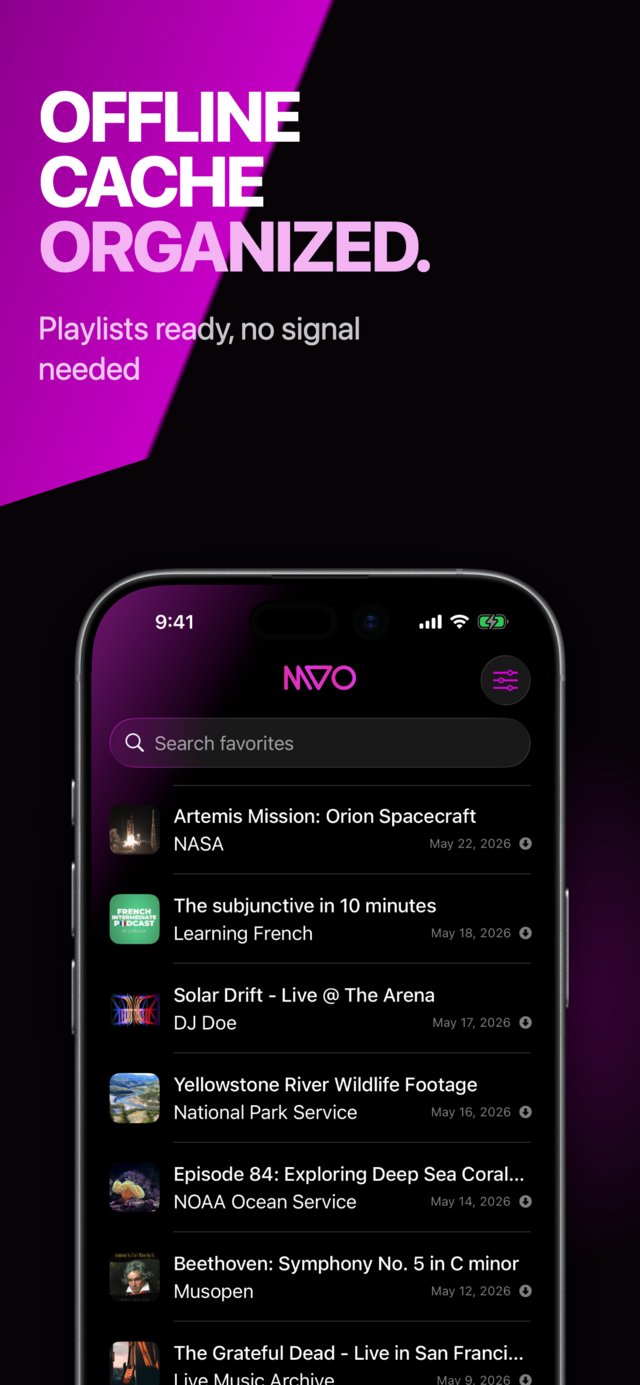
- An iPhone or iPad with MVO and at least one item saved to cache (the row in your Library shows a filled arrow icon).
- An AirPlay receiver: Apple TV, an AirPlay-compatible TV or speaker. The same system picker also lists Bluetooth headphones and speakers.
- The iPhone and the receiver near each other, set up the way AirPlay normally requires.
Step by step: AirPlay saved music to a speaker
1. Play something from your library
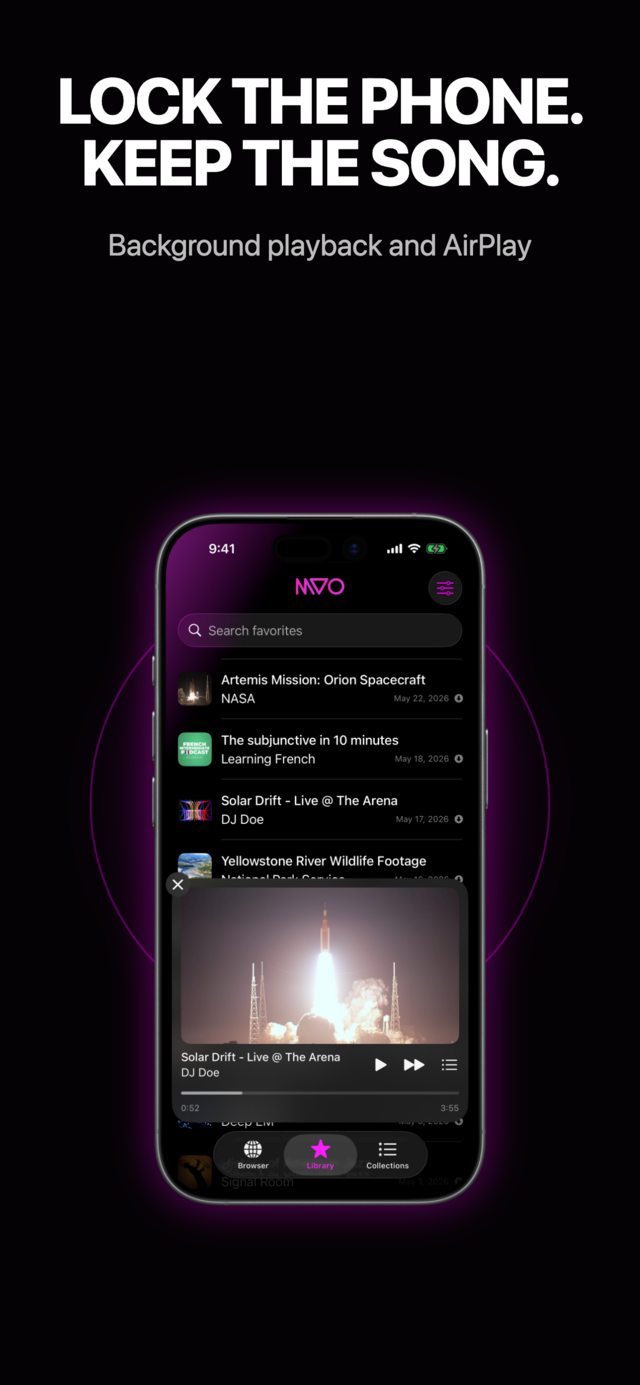
Open the Library or a collection and tap a saved song. The mini-player appears above the tab bar.
2. Open the queue
Tap the list button in the mini-player, or tap the title. The queue sheet opens with Previously Played, Now Playing and Upcoming.
 |
 |
 |
3. Tap AirPlay and choose the speaker
At the bottom of the queue sheet, next to Shuffle and Repeat, tap the AirPlay button. The system route picker opens; choose your speaker or Apple TV. Tap Done to close the sheet: the music keeps playing on the speaker.
You can also switch output from Control Center or the lock screen, like any audio app on iPhone.
Step by step: AirPlay a saved video to your TV
- Play a saved video. A video preview strip appears in the mini-player.
- Tap the strip to open the video fullscreen.
- Use the AirPlay control in the system video controls and pick your Apple TV or AirPlay TV.
- Swipe down to leave fullscreen on the iPhone when you are done.
If you only want the sound of a concert or a music video on a speaker, turn on Settings → Playback → Audio only: MVO then shows artwork and controls instead of the picture, and you can route the audio as in the first section.
Control the room from your iPhone
- Lock screen and Control Center: play, pause, next, previous and scrub the timeline without opening the app.
- Queue: tap any upcoming track to jump to it, or swipe left on an upcoming row to remove it.
- Shuffle and Repeat: mix the upcoming tracks, loop the whole queue with Repeat All, or a single track with Repeat One.
- Auto play next song: in Settings → Playback, keep it on for a non-stop evening, or off to stop after each track.
Tips for parties, cars and holiday rentals
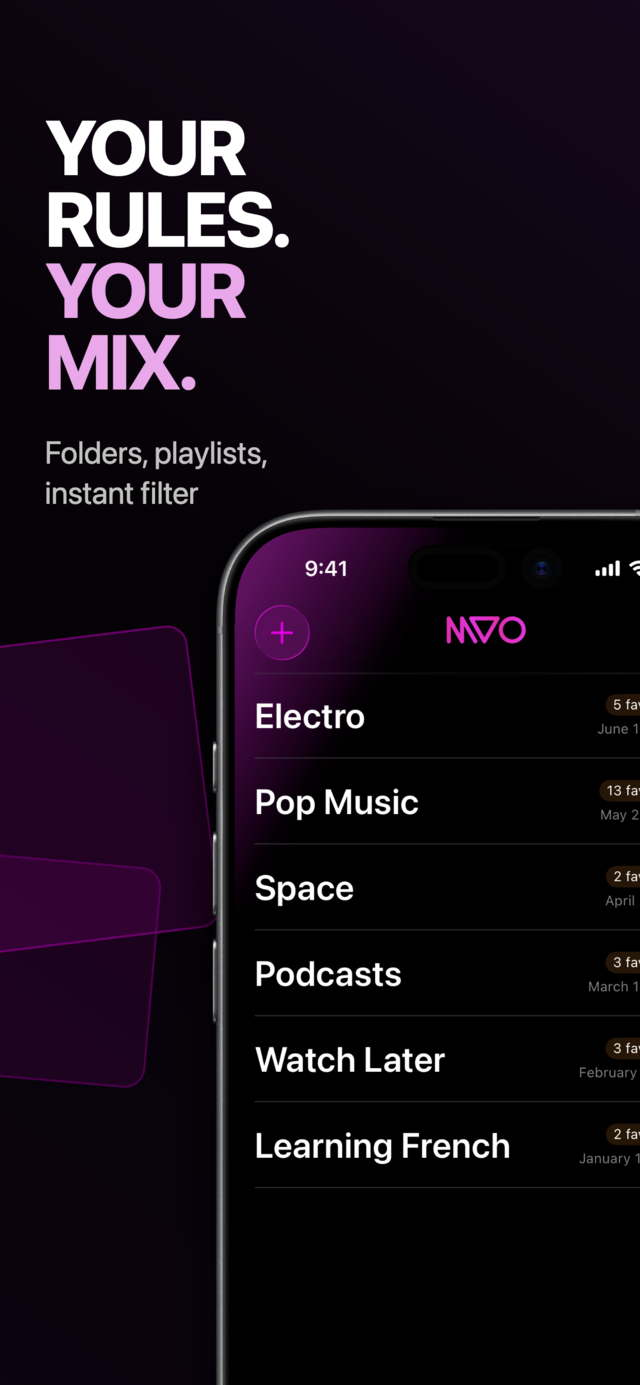
- Prepare a collection. Build a "Dinner" or "Party" collection beforehand, then start it in one tap. See how to organize music and videos into playlists.
- Holiday rental with a smart TV? Save the videos for the kids before you leave, then send them to the TV. Our guide to music and videos abroad without roaming explains how to prepare.
- No ads. Nothing interrupts the music in front of your guests.
- Save only content you are allowed to keep, and play it where you are allowed to play it.
Frequently asked questions
Can I AirPlay music that is stored on my iPhone?
Yes. Anything saved to cache in MVO can be sent to an AirPlay speaker or Apple TV from the queue sheet, Control Center or the lock screen.
How do I put a saved video on my TV?
Open the video fullscreen from the mini-player, then use the AirPlay control in the video controls and pick your TV.
Does AirPlay keep playing when I lock my iPhone?
Yes. MVO plays in the background, so the speaker or TV keeps going and you control it from the lock screen.
Can I use Bluetooth instead of AirPlay?
Yes. The same route picker lists Bluetooth headphones and speakers. If something does not show up, check the MVO help page.
Get MVO
Save your music and videos on your iPhone and play them on any AirPlay speaker or TV.