How to Organize Music and Videos into Playlists on iPhone
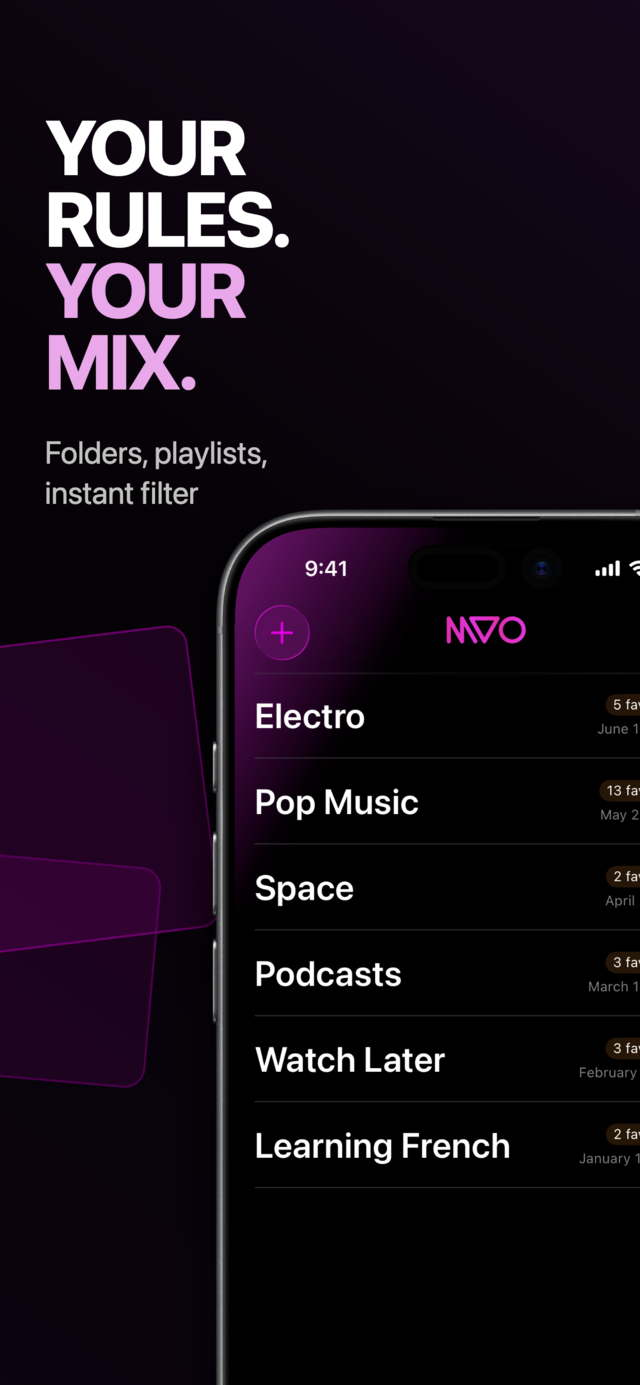
To organize music and videos into playlists on iPhone, save them in one library and sort them into named groups you can play in one tap. In MVO: Offline Music & Video these playlists are called collections: songs, music videos, live sets and clips can sit side by side, and one item can belong to as many collections as you like.
This guide covers creating collections, filling them quickly, sorting them and playing them the way you want.
Why mix music and videos in the same playlist
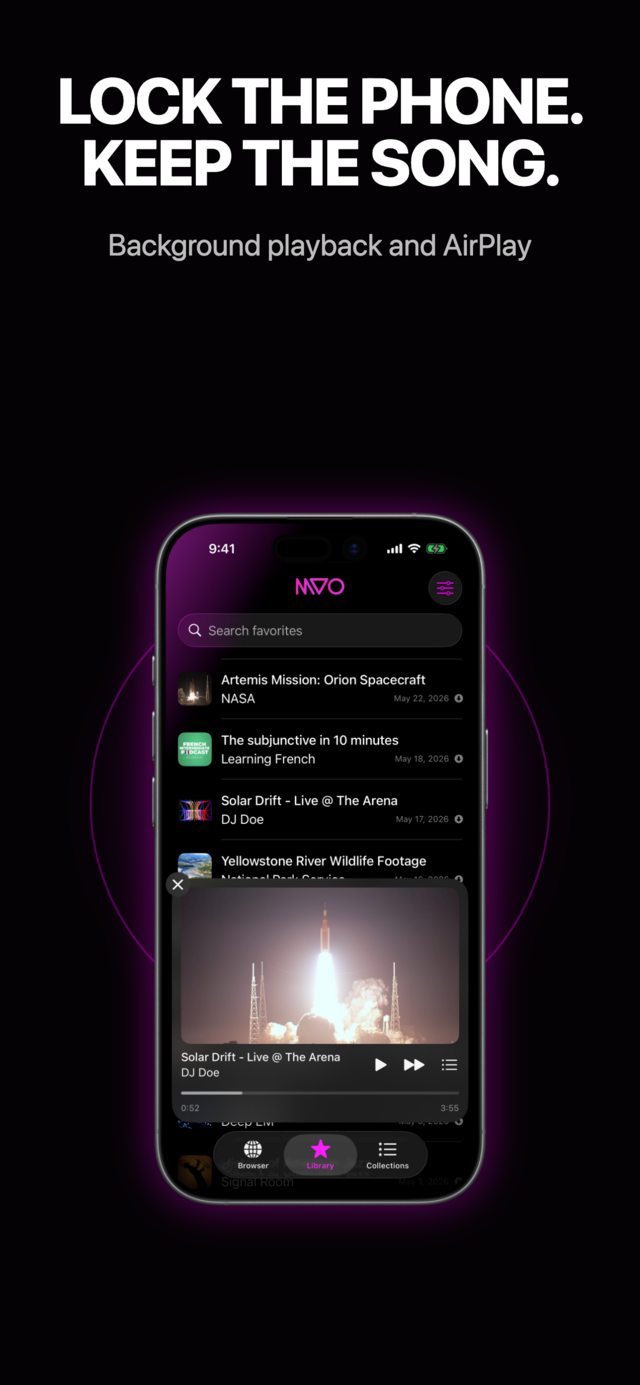
Most players keep audio and video in separate worlds. Yet a "Workout" mix often blends tracks with a few music videos, and a "Jazz evening" may include a full concert recording. In MVO, everything you save from the web lands in the same Library, so a collection can hold any of it. Videos play in the mini-player or fullscreen; with Audio only turned on in Settings, they behave like songs.
 |
 |
 |
Step by step: create your first playlist in MVO
1. Save a few items to your library
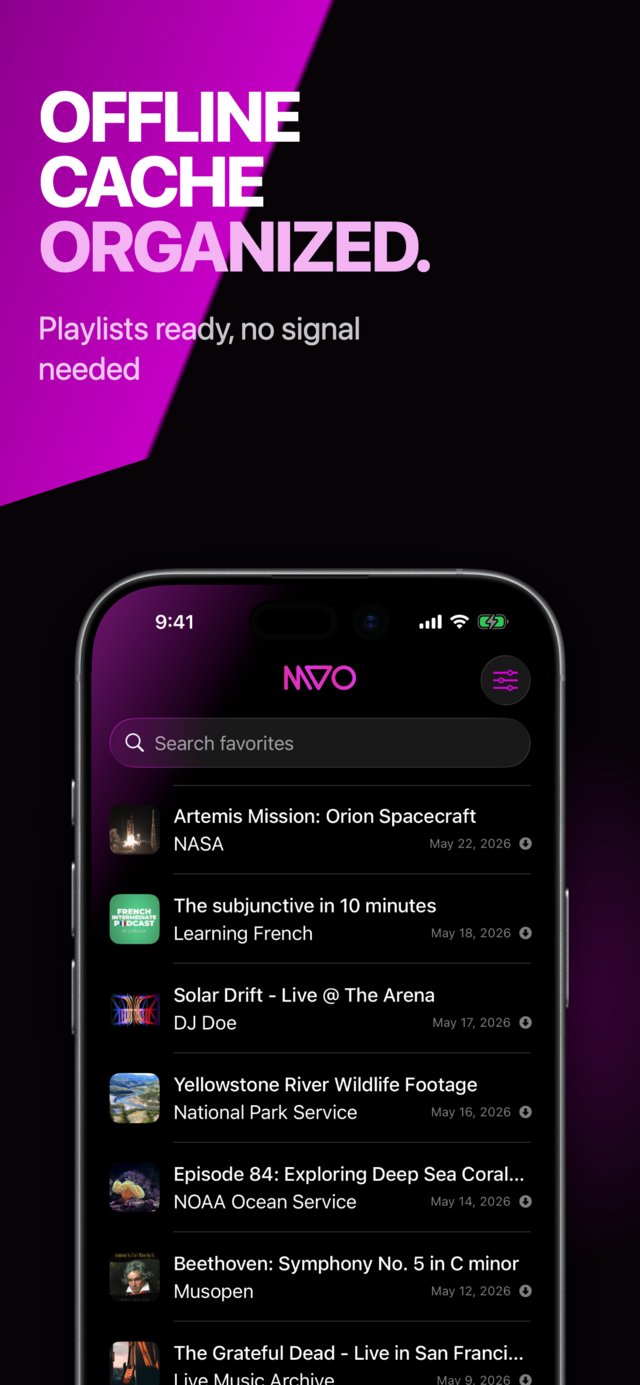
In the Browser tab, open a page with music or video and tap Add to Library. The item is saved to cache on your iPhone and appears in the Library tab. Save only content you are allowed to keep.
2. Create a collection
Go to the Collections tab, tap + at the top left, type a name in the Create a Collection dialog and tap Create.
3. Add items one at a time
In the Library, long-press a row (or swipe right and tap Action), then choose Collections. Tap a collection to add the item; a checkmark shows where it belongs. Tap it again to remove it.
4. Or add many at once
Long-press any row and choose Select. Tap every item you want, then tap Add to collection in the bottom bar and pick the destination. Tap Done to leave selection mode.
5. Play it
Open the collection and tap any item. The queue is built from the collection, in the order shown on screen, so what you see is what plays next.
Sorting and shuffling
Order of your collections
On the Collections tab, the sort button (up and down arrows) offers A-Z, Z-A, Recent and Oldest. MVO remembers your choice.
Order inside a collection
Each collection has its own sort menu with the same options plus Random. Random keeps the same shuffled order until you choose it again, which gives a fresh mix. Want a new order just for the songs still to come? Open the queue and tap Shuffle: only upcoming tracks are reordered.
Repeat
In the queue sheet, Repeat cycles between off, Repeat All (loops the whole collection) and Repeat One. Pressing Next still moves on, even in Repeat One.
Tips to keep a big library tidy
- Use themes, not genres only. "Morning run", "Commute", "Kids in the car", "Learn guitar": collections built around moments are the ones you actually play.
- One item, several collections. A song can live in "Summer 2026" and "Road trip" at the same time without being saved twice.
- Import whole albums. Turn on Settings → Cache → Import as collection. When you add a link that belongs to an album or a list, MVO asks whether to keep Only one media or All the collection, and the second choice creates a matching collection for you.
- Rename any time. Long-press a collection and choose Edit.
- Delete without fear. Deleting a collection never deletes the items inside; they stay in your library. An Undo banner also gives you a few seconds to change your mind.
- Search first. In the Library, the Search favorites field filters by title, handy before a multi-select.
Your collections are part of the library synced with iCloud, so they follow you to your other iPhone or iPad. Want them to play anywhere? Read how to listen to music without internet on iPhone or how to watch videos offline.
Frequently asked questions
Can a playlist contain both songs and videos?
Yes. A collection holds anything in your MVO library: audio, video, and even saved page snapshots.
How do I shuffle a playlist on iPhone?
Open the collection, choose Random in its sort menu, then play. You can also tap Shuffle in the queue sheet to mix only the upcoming tracks.
Does deleting a playlist delete the songs?
No. Deleting a collection only removes the group. Every item stays in your Library.
Do my playlists sync between iPhone and iPad?
Yes. Collection names and membership are synced with iCloud. The cached media stays on each device, so save items to cache on the second device too. More details on the help page.
Get MVO
Gather your music and videos into collections that play in one tap, with or without a signal.