How to Listen to Music Without Using Mobile Data
To listen to music without using mobile data, save your songs to your iPhone over Wi‑Fi, then play them from the device when you are out. Music stored on the phone uses no data at all, whether you are on 5G, 4G or no signal.
Below is a simple "save on Wi‑Fi, play on the go" routine with MVO: Offline Music & Video, and a few habits that keep your data plan intact until the end of the month.
Where your mobile data really goes
Streaming audio is a quiet but steady drain: every minute you listen is fetched again from the internet, even for a song you have heard a hundred times. Videos are far heavier, and many people play music videos just for the sound. Over a month of commutes, that adds up quickly, and once the plan runs out, everything slows down or stops.
The only way to bring that number to zero is to keep the music on the iPhone and play it from there.
Step by step: save on Wi‑Fi, play without data
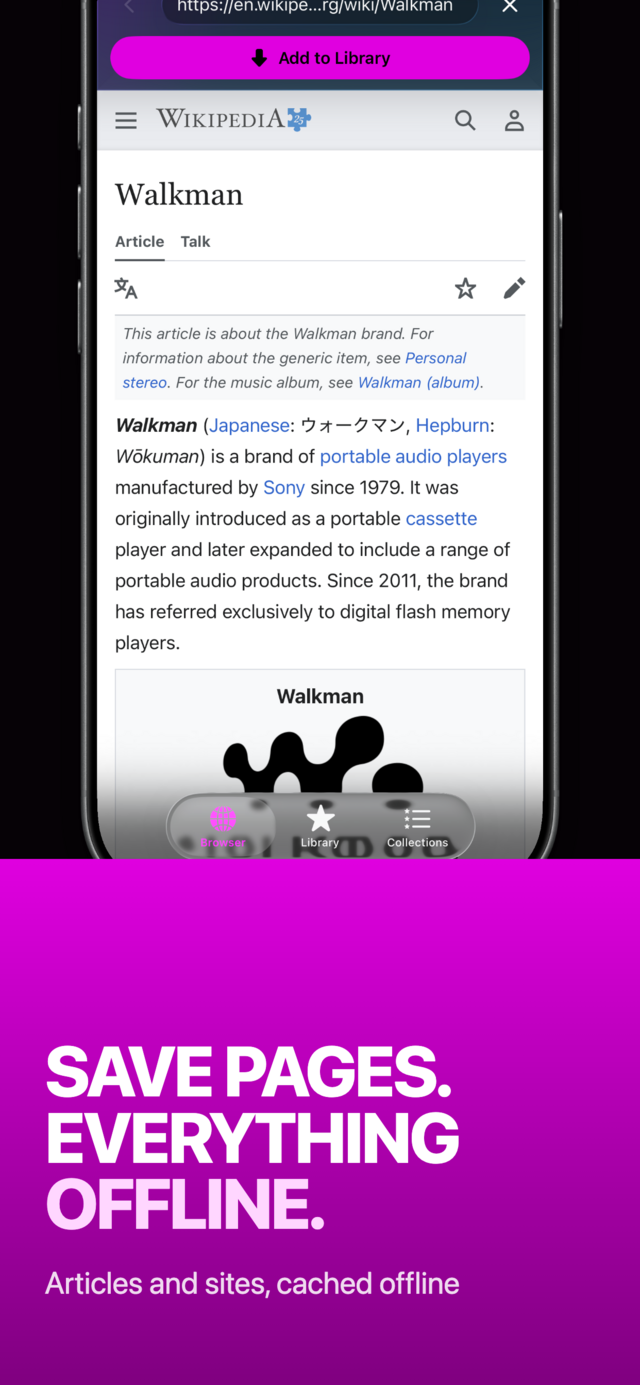
1. At home, connect to Wi‑Fi and open MVO
Use the Browser tab to visit the sites where you find music, mixes, podcasts or videos.
 |
 |
 |
2. Tap Add to Library on what you want to keep
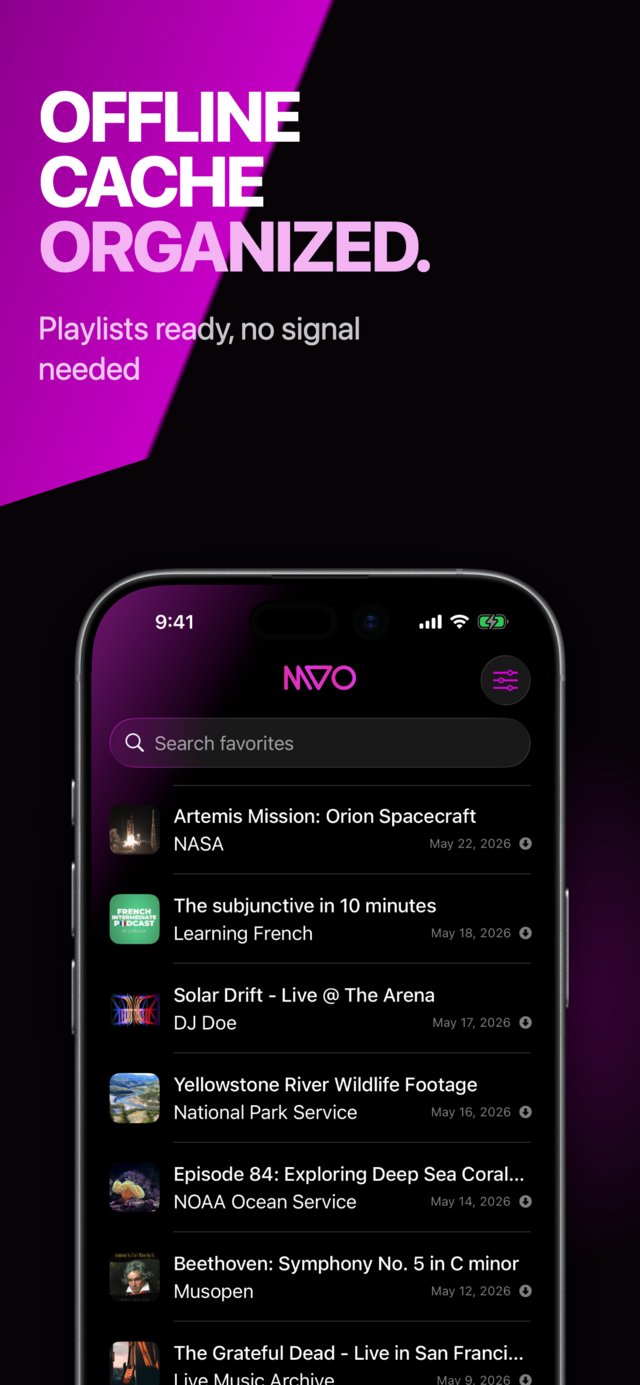
MVO saves the media to its cache on your iPhone and adds it to your Library. A filled arrow icon on the row confirms it is stored on the device. Items without it are links only and would need a connection.
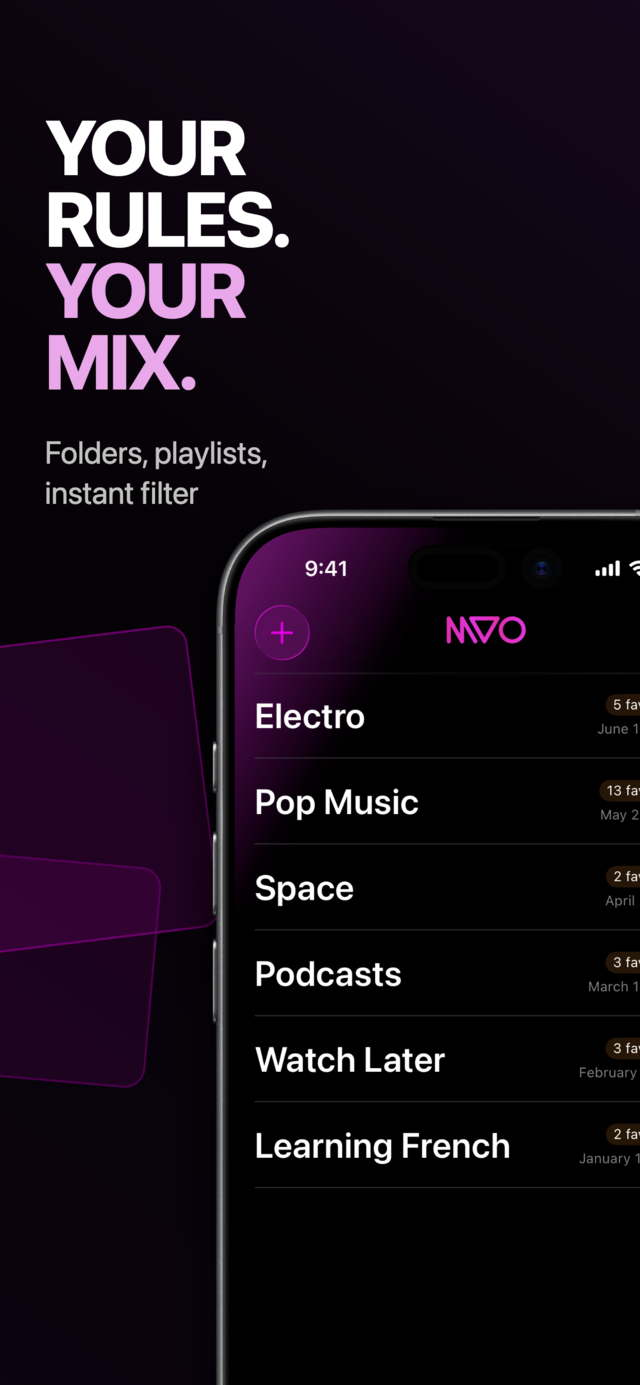
3. Build collections for your routines
In the Collections tab, create "Commute", "Gym" or "Running" with the + button, then add songs from your library. One tap on the way out, and the whole list plays.
4. Out and about: just press play
Play anything from your library or a collection. It is read from the iPhone's storage, so your data counter does not move. Lock the screen and keep listening, with controls on the lock screen and in Control Center.
Save only content you are allowed to keep.
When does MVO use data?
- Browsing in the Browser tab, like any browser.
- Saving a song, video or page to your library.
- Library sync: titles, links and collections are synced with iCloud. These are small pieces of information, not your music.
Playing anything already saved uses none. If you want to be sure MVO never touches your plan, you can turn off mobile data for the app in the iOS Settings app, under the cellular or mobile data section, and keep using it normally on Wi‑Fi.
Habits that keep your data plan safe
- Save on Wi‑Fi, not on the go. Videos in particular are large. Add them at home, at work or at the hotel.
- Look for the cache icon. Before leaving, glance at your library: anything with a dotted circle is still a link. Long-press it and choose Save to cache while you are on Wi‑Fi.
- Prefer saved items over web pages on the move. Tapping a link-only item opens the live page in the browser, which uses data.
- Use Audio only for music videos. Turn it on in Settings → Playback to hear saved videos as songs, with artwork instead of the picture.
- Watch your storage, not your data. Settings → Cleanup shows the Size on disk. Delete what you no longer listen to, or use Clear cache to start fresh.
- Let the queue run. With Auto play next song on, the next saved track starts automatically, so your commute playlist plays from start to finish.
Frequently asked questions
Does playing saved music in MVO use mobile data?
No. Saved songs and videos play from your iPhone. Only browsing and saving new items use the network.
Can I use MVO with mobile data turned off completely?
Yes. Your library plays the same with mobile data off, with no signal, or in airplane mode. See how to listen to music without internet on iPhone.
What about when I travel abroad?
The same routine avoids roaming charges: save before you leave, play while you are there. Our guide to music and videos abroad without roaming has a full checklist.
Do videos use more storage than songs?
Yes, much more. If you mostly listen, prefer audio sources, and check Size on disk from time to time. For more on videos, read how to watch videos offline on iPhone or the MVO help page.
Get MVO
Save your music on Wi‑Fi once and listen all month without touching your data plan.