How to Listen to Music Without Internet on iPhone
On a plane, deep in the subway, abroad without roaming or at the end of your data plan: the moment the signal drops, most music apps stop playing. The fix is simple. Keep the songs and videos you love on your iPhone itself, so they play with no Wi‑Fi and no mobile data at all.
This guide shows how to do it in a few taps with MVO: Offline Music & Video, an in-app browser and media player for iPhone.
Why your music stops when the signal drops
Streaming apps play music as it arrives from the internet. When the connection disappears, the stream stops after a few seconds of buffer. To listen without internet, the audio has to be stored on the device before you lose the signal.
MVO does exactly that: you browse the web inside the app, save the media you find, and it stays in your library, ready to play anywhere.
Step by step: listen to music without internet with MVO
1. Find a song or video on the web
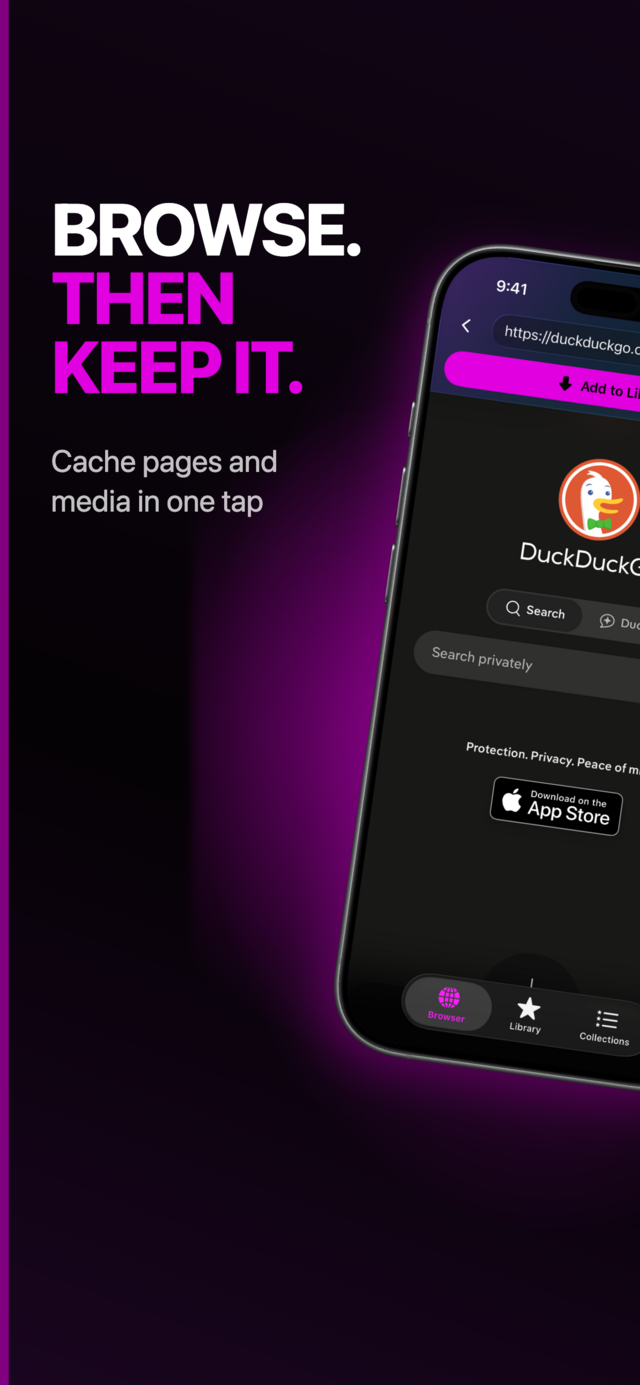
Open the Browser tab and visit any site with music or video, just like in Safari.
 |
 |
 |
2. Save it to your library
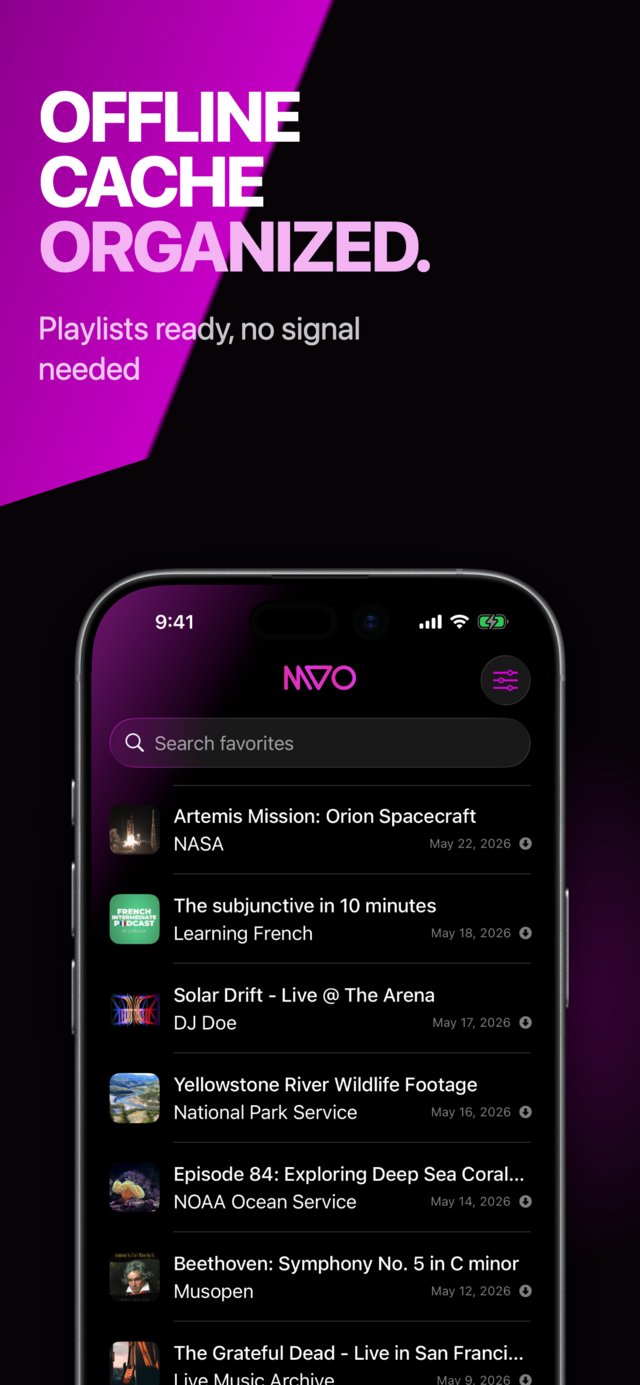
Tap Add to Library. MVO saves the media to its cache on your iPhone and adds it to your Library with its title and artwork. No media on the page? MVO can keep a snapshot of the page itself, so you can read it later.
3. Turn off Wi‑Fi and press play
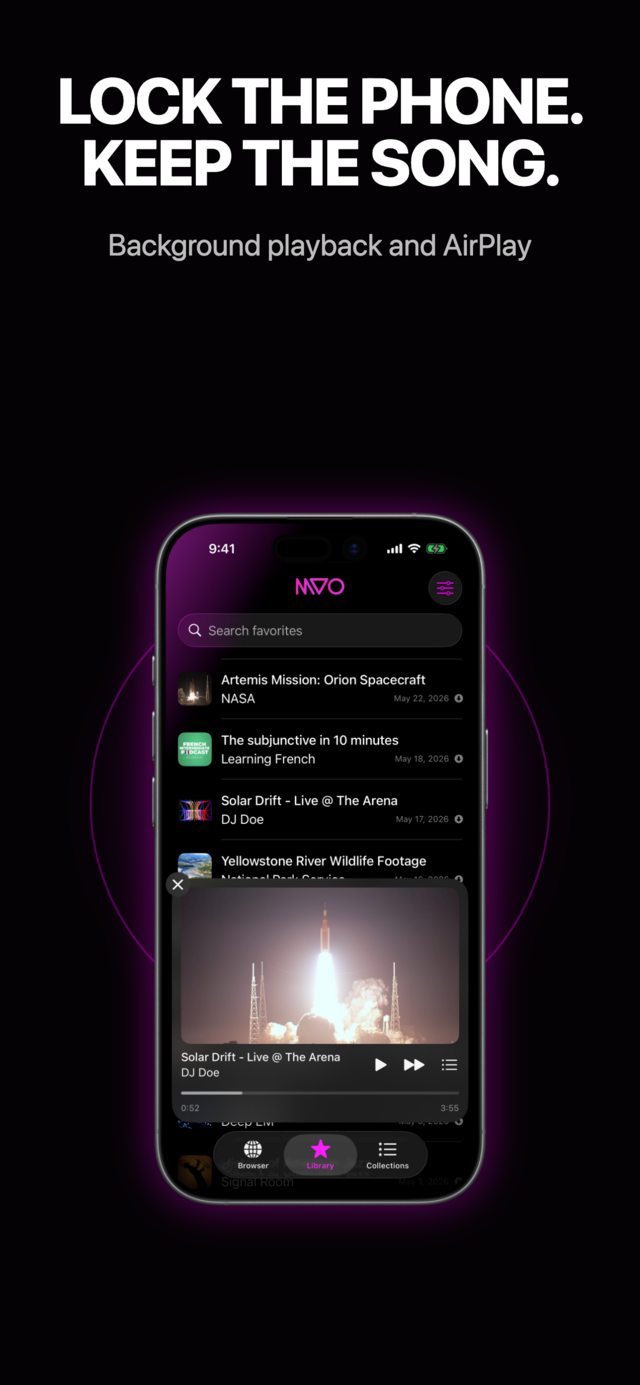
Switch to airplane mode if you like: everything in your library plays from your iPhone. Lock the screen and the music keeps going in the background, with controls on the lock screen and in Control Center. At home or in the car, send it to a speaker with AirPlay.
Tips before a flight or a long trip
- Prepare on Wi‑Fi. Save your songs and videos at home or at the hotel, before you leave.
- Group them in collections. Create a collection for the flight, the commute or the gym, and play it in one tap.
- Keep an eye on storage. Videos take more space than audio; remove what you no longer need from the library.
- Use the queue. Shuffle, repeat one or repeat all, and reorder what comes next.
Frequently asked questions
Does it work in airplane mode?
Yes. Once a song or video is in your MVO library, it plays with no network at all: airplane mode, no Wi‑Fi, no mobile data.
Can I watch videos without internet too?
Yes. MVO keeps both music and video. Videos play full screen, and you can listen to them like audio with the screen locked.
Does it use my mobile data?
Only when you browse and save something. Playing what is already in your library uses no data.
Does the music keep playing when I lock my iPhone?
Yes. MVO plays in the background, shows what is playing on the lock screen, and works with headphones, car controls and AirPlay. And there are no ads to interrupt it.
Get MVO
MVO: Offline Music & Video is available on the App Store for iPhone and iPad.