How to Save a Link from Safari or Any App to MVO
To save a link from Safari to MVO, tap the Share button, then tap MVO in the row of apps. MVO opens on that page and adds it to your library on its own, saving the music or video to cache when the page has some, exactly as if you had tapped Add to Library yourself.
The same works from any app that can share a web link: messages, notes, mail, social apps. Here is the full walkthrough and how to fix it when MVO is missing from the share sheet.
When sharing a link beats browsing in MVO
MVO has its own Browser tab, and for exploring that is often the quickest way. But many links reach you elsewhere: a friend sends a live recording in a chat, you stumble on a music video while reading in Safari, a teacher emails a lecture link. Copying and pasting addresses is tedious. The share extension sends the link straight to MVO in two taps, without leaving where you are for more than a moment.
Step by step: share a link from Safari
1. Open the page in Safari
Go to the page with the song, video or article you want to keep.
2. Tap Share, then MVO
Tap the Share button (the square with an arrow). In the row of apps, tap MVO. If you do not see it, swipe the row to the end and tap More, then add MVO to your favorites so it stays in front next time.
3. Let MVO do the rest
MVO comes to the front, switches to the Browser tab and loads the shared page. As soon as the page has loaded, it is added to your library with the same checks as the Add to Library button:
- Music or video found: the item is added and saving to cache starts, with a progress overlay you can cancel.
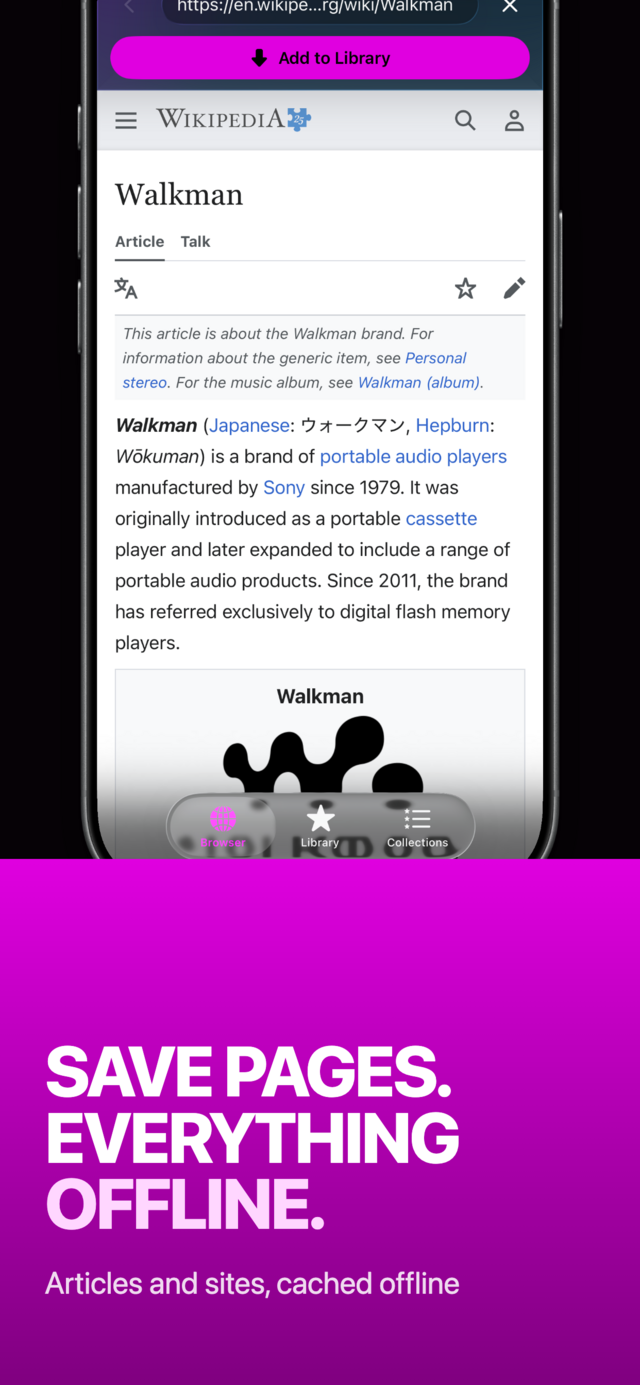
- No media on the page: MVO offers to save a snapshot of the page instead, so you can read it later without a connection.
- A link from an album or a list: if Settings → Cache → Import as collection is on, MVO asks whether to keep Only one media or All the collection.
- Already saved: an Already in favorites alert tells you, and nothing is duplicated.
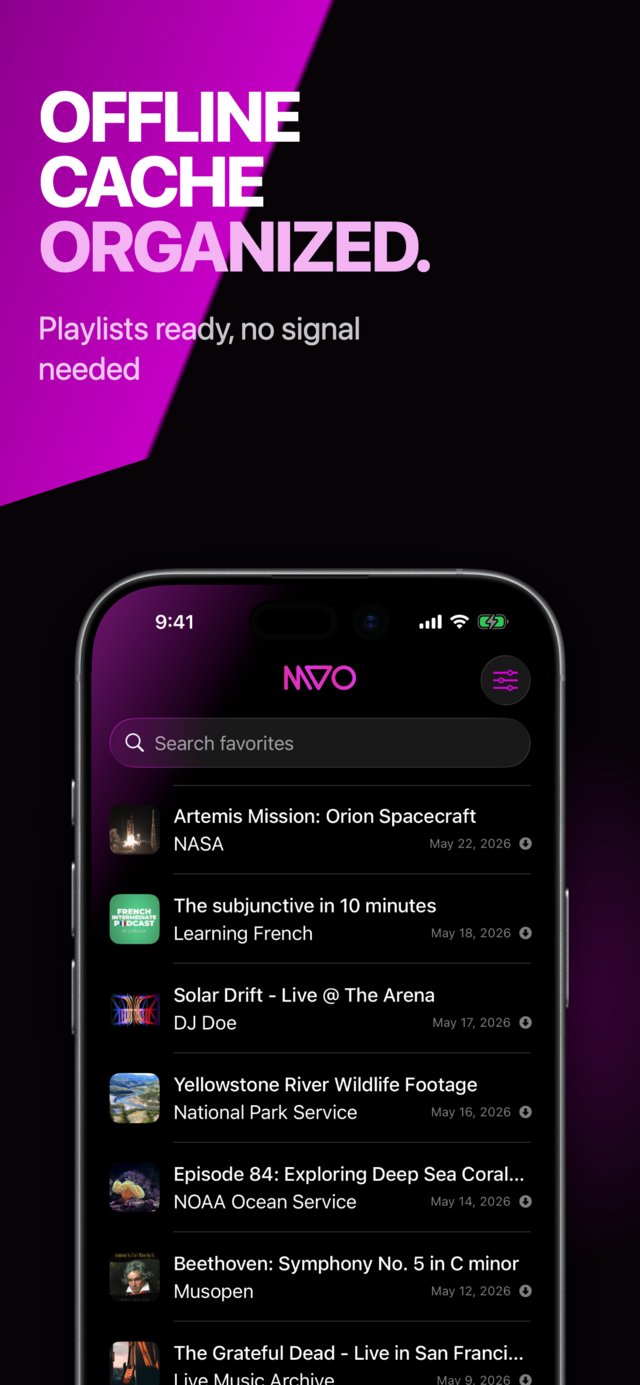
When it is done, the item appears in your Library.
 |
 |
Share from any other app
The steps are the same everywhere the iOS share sheet shows up:
- Find the link (in a chat, a note, an email, a social post).
- Tap Share, or long-press the link and choose Share.
- Pick MVO.
MVO accepts a shared link, or shared text that is just a web address. If you share a whole paragraph with a link buried in it, MVO cannot pick the address out; copy the link itself instead, or paste it into the Search or enter URL field of the Browser tab.
Tips
- Share while on Wi‑Fi. Saving a video to cache can use a lot of data. On iOS 26 and later, the job keeps running if you switch back to Safari or another app.
- Sort as you go. Once the item is in your Library, long-press it and choose Collections to file it right away. Our guide on organizing music and videos into playlists has more ideas.
- Articles, recipes, tickets. Pages without media become snapshots you can reopen offline, see how to save a web page to read offline.
- Save only content you are allowed to keep.
Frequently asked questions
Why is MVO not in my share sheet?
Open the share sheet, scroll the row of apps to the end and tap More. Turn MVO on or add it to your favorites.
Can I share a link from apps other than Safari?
Yes. Any app that shares a web link through the iOS share sheet works, including messaging, mail and notes apps.
What happens if I share a link I already saved?
MVO shows Already in favorites and does not add it twice.
Does sharing to MVO work on iPad?
Yes. The share extension works the same on iPhone and iPad. For anything else, see the MVO help page.
Get MVO
Send links from Safari or any app to MVO and keep the music, videos and pages you care about.