How to Keep Music Playing with the iPhone Screen Locked
If your music stops the moment you lock your iPhone, it is usually because it is playing inside a web page, and the page pauses when the screen goes dark. The fix is to play it from an app that supports background audio: in MVO: Offline Music & Video, everything you save to your library keeps playing with the screen locked, with controls on the lock screen and in Control Center.
Here is why the music cuts out, and how to set things up so it never does.
Why music stops when you lock the screen
When you listen to a song or a video inside a web page in a regular browser, the sound belongs to that page. Lock the iPhone or switch apps, and the page is often paused to save resources. Videos are the worst offenders: lock the screen and the sound disappears with the picture.
A media app that plays in the background works differently. It hands the audio to iOS, which keeps it going while the screen is off and shows what is playing on the lock screen.
Step by step: background playback with MVO
1. Find the song or video in MVO's browser
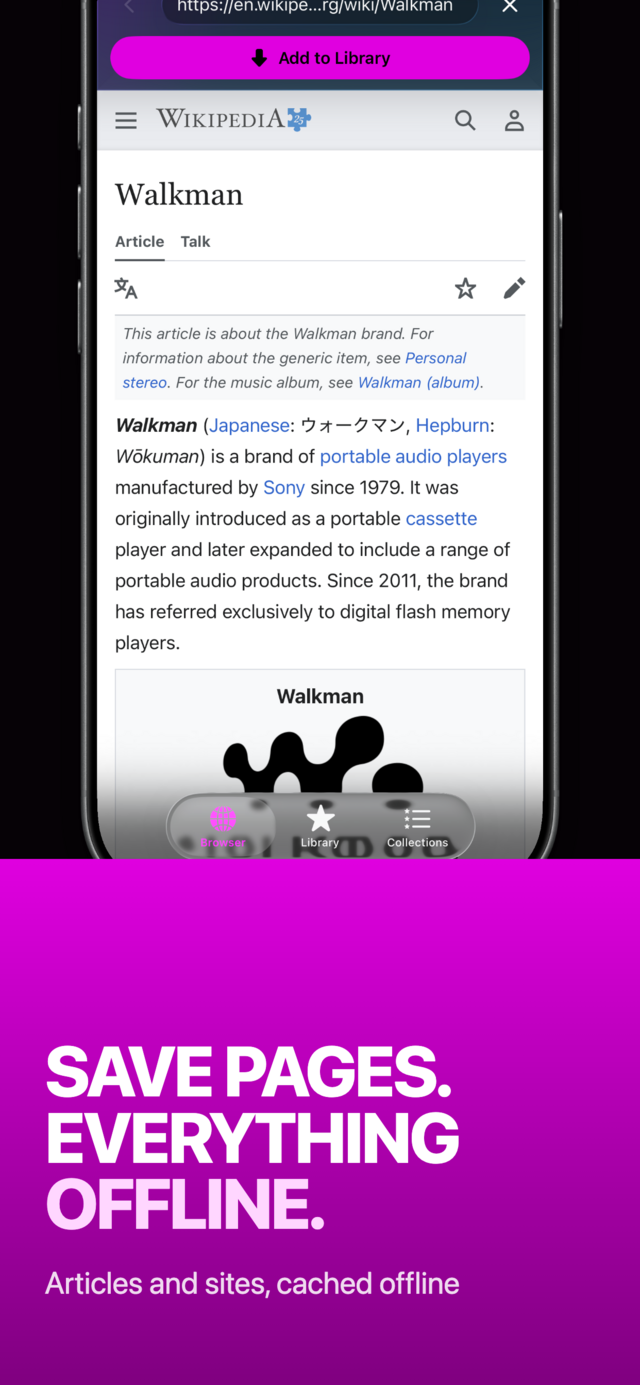
Open the Browser tab and go to the page with the music, mix, talk or video you want to hear.
 |
 |
 |
2. Tap Add to Library
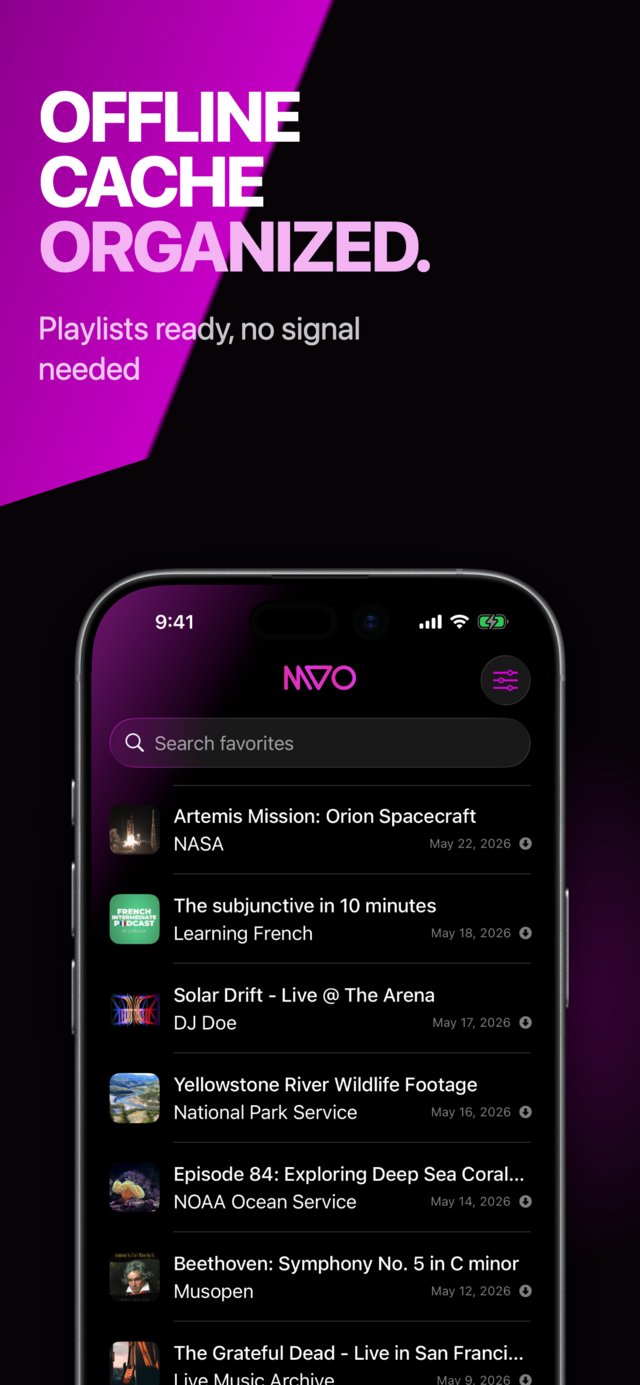
MVO saves the media to its cache on your iPhone and adds it to your Library with its title and artwork.
Save only content you are allowed to keep.
3. Play it from your Library
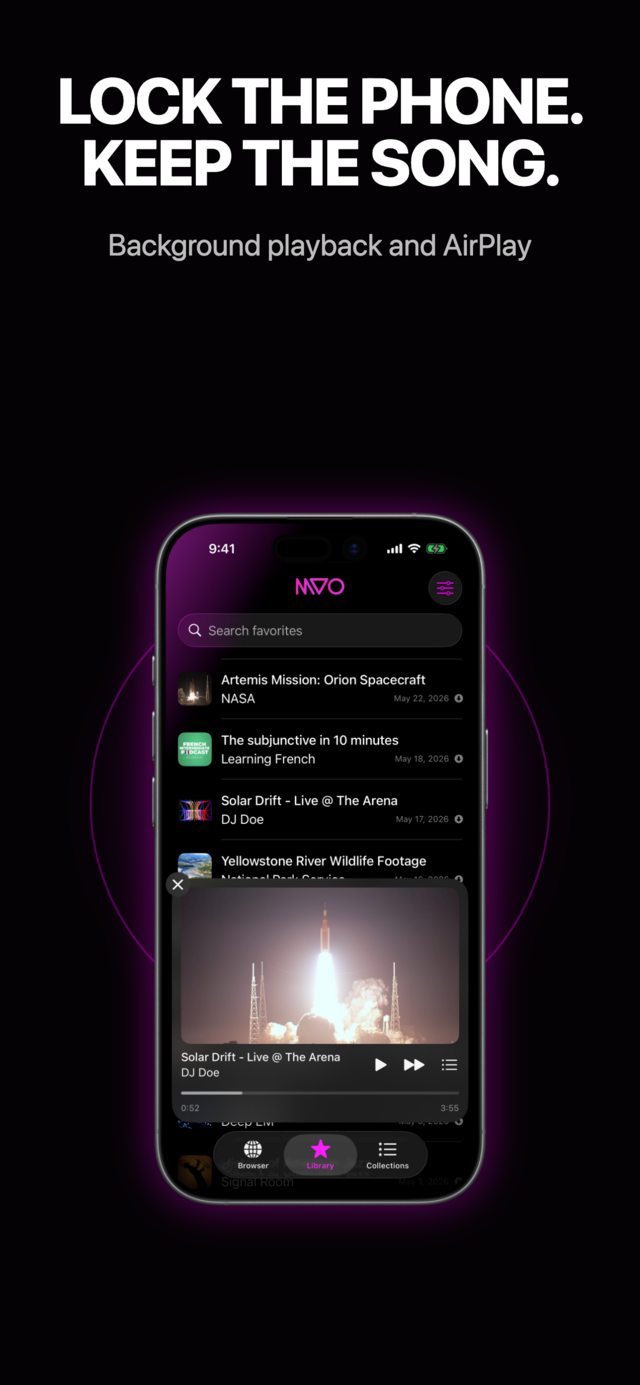
Tap the item in the Library tab (or inside a collection). The mini-player appears above the tab bar, and the rest of the list becomes your queue.
4. Lock your iPhone
Press the side button. The music keeps playing. On the lock screen you see the title, artist and artwork, with play, pause, next, previous and a timeline you can scrub. The same controls are in Control Center, so you can skip a track without unlocking or leaving the app you are in.
Videos with the screen locked
This is where MVO is most useful. Save a concert, a talk or a music video, play it, then lock the screen: the sound keeps going, just like a song. Ideal for a long walk, a run or the commute.
If you never want the picture, turn on Audio only in Settings → Playback. The player then shows artwork and controls instead of the video, without changing what is saved.
Settings that make background listening better
- Auto play next song. When on, the next track in the queue starts when the current one ends, so a locked iPhone plays your whole list. When off, playback stops at the end of the track.
- Resume playback where you left off. On by default. Each item remembers where you stopped, perfect for podcasts and lectures. More on that in podcasts, lectures and lessons offline.
- Repeat and Shuffle. Open the queue from the mini-player list button. In the footer, Shuffle mixes the upcoming tracks, and Repeat cycles between off, Repeat All and Repeat One. A manual skip to the next track always works, even on Repeat One.
Headphones, car and speakers
Because the audio goes through iOS, MVO follows the controls of your headphones and car, and appears as the current player wherever iOS shows one. From the queue sheet, the AirPlay button lets you pick an Apple TV, an AirPlay speaker or Bluetooth device. See how to AirPlay your saved music and videos.
Tips
- One tip for Previous: the in-app mini-player has Next but no Previous button. Use the lock screen or Control Center to go back a track, or tap a track in Previously Played in the queue.
- Build the queue from a collection to control exactly what plays while your phone is in your pocket.
- It works with no signal too. Your saved items play from the iPhone, so locking the screen in airplane mode is no problem. See how to listen to music without internet on iPhone.
Frequently asked questions
Why does my music stop when I lock my iPhone?
Most often the audio is playing inside a web page, which pauses in the background. Play it from a media app with background playback, such as MVO, and it continues with the screen off.
Can I play a video's sound with the screen off?
Yes. In MVO, a saved video keeps playing its sound when you lock the iPhone. You can also turn on Audio only to hide the picture altogether.
How do I control the music without unlocking?
Use the lock screen player or Control Center: play, pause, next, previous and scrubbing all work there.
Can I stop playback completely?
Yes. Tap the X on the left of the mini-player to stop playback and clear the queue. The MVO help page covers every player control.
Get MVO
Lock your iPhone, slip it into your pocket and let the music play with MVO.