How to Save a Web Page to Read Offline on iPhone
To read a web page offline on iPhone, you need a copy of that page stored on the device, not just a bookmark. In MVO: Offline Music & Video, open the page in the app's browser and tap Add to Library: when the page has no music or video, MVO saves a snapshot of it that you can open later without any connection.
This guide explains how page snapshots work, what they keep, and how to use them for recipes, travel notes, articles and tickets you want at hand.
Bookmarks are not enough
A bookmark only stores an address. When you tap it in the subway or abroad without data, the browser tries to load the page and you get an error. To read a page with no network, the text and images must already be saved on your iPhone.
MVO is mainly a browser and media player that keeps music and videos for listening without internet. But it treats pages the same way: what you add to your library stays available, even when the signal is gone.
Step by step: save a web page for offline reading
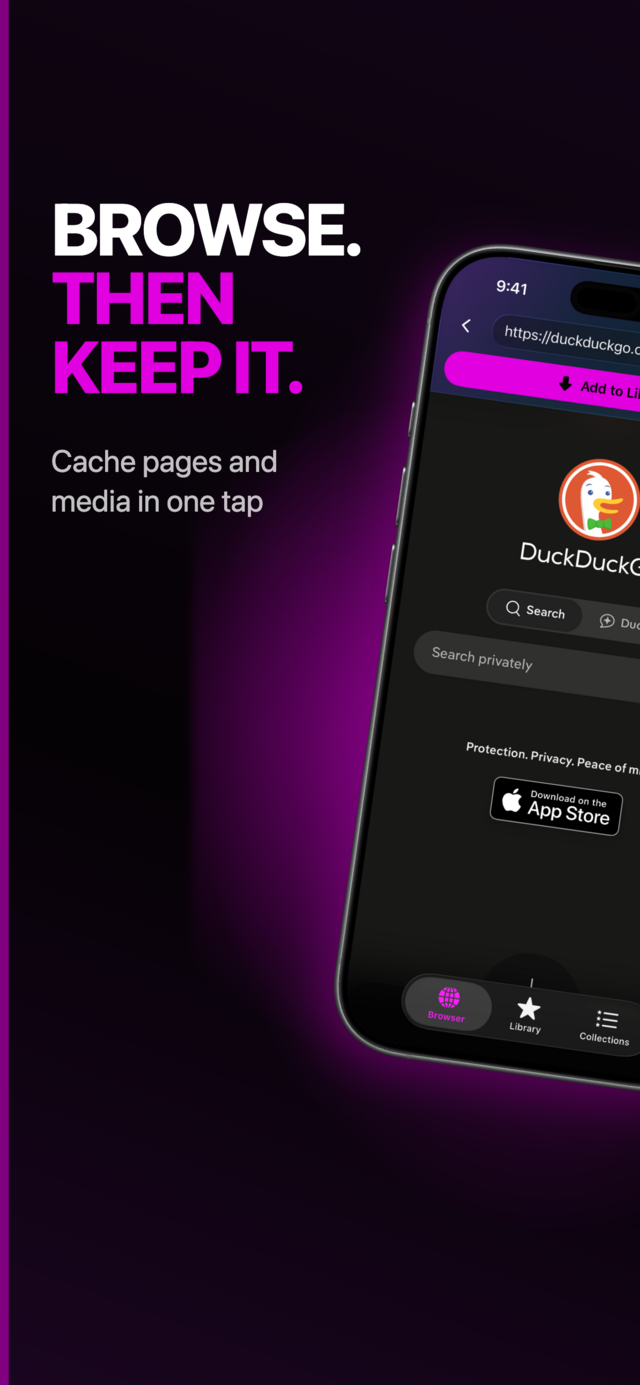
1. Open the page in MVO's browser
Go to the Browser tab and enter the address or a search in the address bar. Scroll to make sure the page is fully loaded and shows what you want to keep.
 |
 |
 |
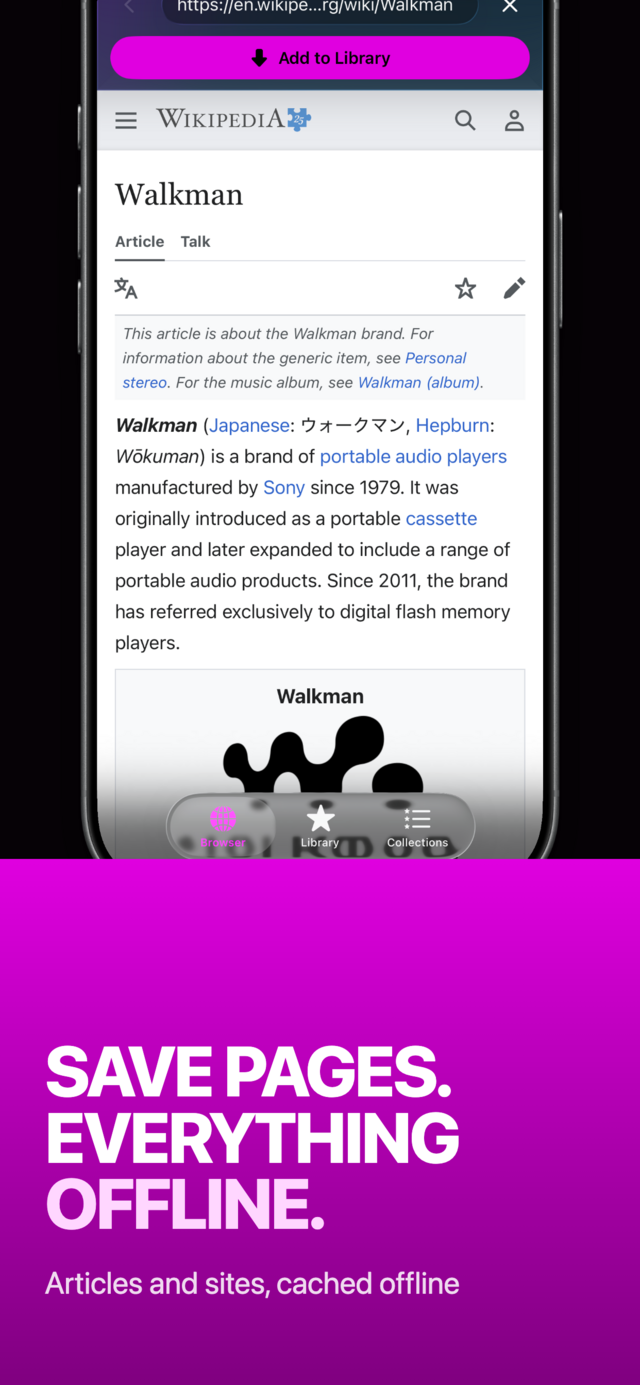
2. Tap Add to Library
MVO first looks for music or video on the page. If there is none, it tells you the page will be saved to cache and added to your library. Tap Yes. A Saving page to cache… message appears for a moment; tap Cancel if you change your mind.
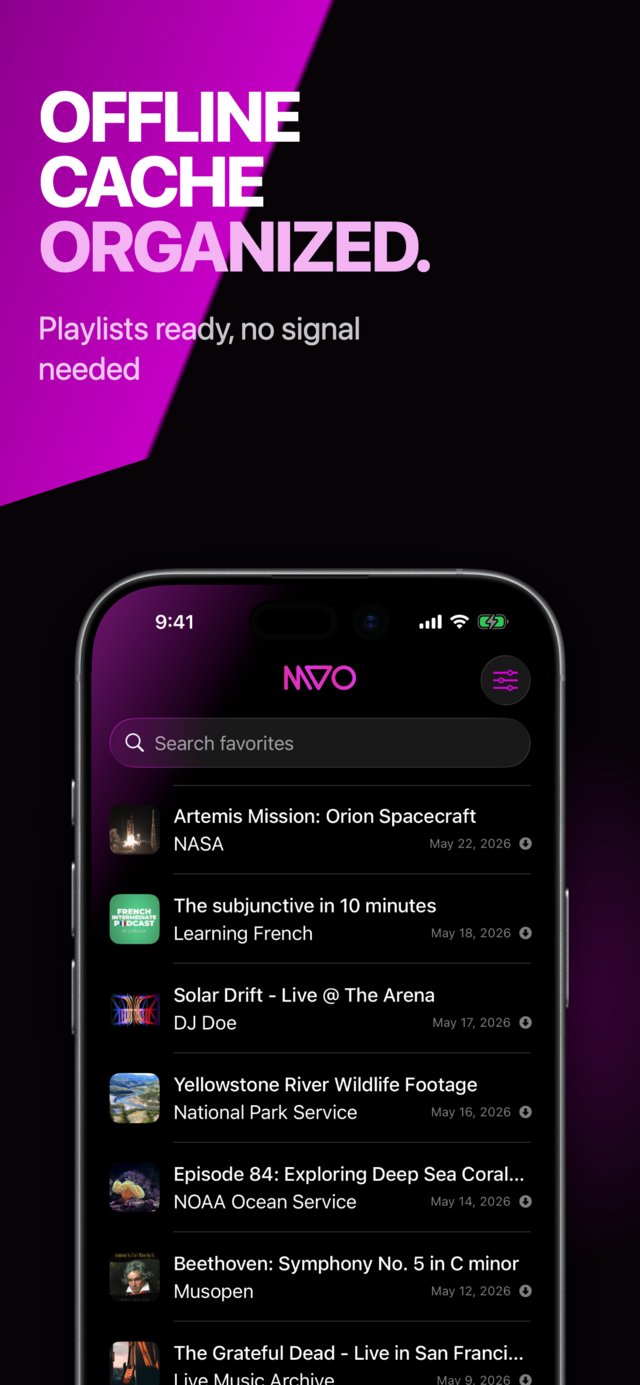
3. Find it in your Library
The page now appears in the Library tab with its title and a preview image when one is available. A small document icon on the right of the row means the snapshot is stored on your iPhone.
4. Open it anywhere
Tap the row. MVO switches to the Browser tab and opens the saved copy. The address bar shows a document icon and the page title. It works in airplane mode, in a tunnel or abroad with data turned off.
What a page snapshot keeps
A snapshot is a frozen copy of the page as it looked when you added it:
- Text and layout, with images and styles kept inside the copy whenever possible.
- Links, exactly as on the original page. Tapping one opens the live site, so it needs a connection.
- No scripts. Interactive parts such as live maps, comment feeds or forms will not work in the copy, which also makes it fast and quiet to read.
A snapshot does not update. If the page changes later, add it again to keep the new version.
Save only content you are allowed to keep.
Good uses for saved pages
- Recipes you cook from in a kitchen with poor reception.
- Travel info: hotel directions, opening hours, a city guide, read on arrival before you buy a local SIM.
- Long articles for the commute underground.
- Event details and instructions you need at a venue where the network is saturated.
- Practice notes or tutorials next to the songs you saved for practice.
Tips
- Save while the page is open and complete. The snapshot is taken from the live page, so you need a connection at that moment.
- Group pages in collections. Long-press a saved page, choose Collections and add it to "Trip to Rome" or "Recipes", alongside music or videos.
- Rename for easy search. Long-press, choose Edit and give the page a clear title. The Search favorites field in your library matches titles.
- Send pages from Safari. Use the share sheet in Safari or another app to send a link to MVO, then save it. See how to save a link from Safari or any app to MVO.
- Back from a snapshot. The Back button on a saved page returns you to the browser home screen.
Frequently asked questions
Can I save a web page as a PDF instead?
iOS offers its own options for that. MVO's snapshot is different: it keeps the page inside your library, next to your music and videos, and opens with one tap in the app's browser.
Does the saved page work in airplane mode?
Yes. The snapshot is stored on your iPhone. Only links to other pages need a connection.
Is the saved page synced to my other devices?
Your library list (titles, links and collections) is synced with iCloud, but the snapshot itself stays on the device that saved it. On another iPhone, the page shows as a link until you save it there too.
What happens if the page has a video on it?
MVO saves the video instead, so you can play it with no signal. See how to watch videos offline on iPhone, or visit the MVO help page.
Get MVO
Keep the pages you need on your iPhone and read them anywhere, signal or not.